HDMI eARC Compatible TV: Practical Compatibility Guide
Discover how HDMI eARC compatible TV setups deliver premium audio, how to verify eARC support, connect soundbars and AVRs, and troubleshoot lip-sync with practical steps backed by My Compatibility analysis, 2026.


An hdmi earc compatible tv enables premium audio via the enhanced Audio Return Channel when paired with a soundbar or AVR. To get the most from it, verify your TV supports eARC, use the HDMI port labeled eARC, enable eARC in the TV’s audio settings, and connect using a high-quality HDMI 2.1 cable.
What HDMI eARC is and why it matters
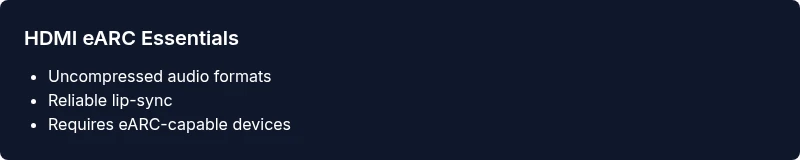
HDMI eARC, or enhanced Audio Return Channel, is a feature that gives your TV a high-bandwidth path for audio signals to travel to external speakers. When you own an hdmi earc compatible tv, you unlock support for uncompressed audio formats, object-based sound, and precise lip-sync, especially when using a soundbar or AV receiver. In practice, this means your TV can send top-tier audio data to your external system without downsampling or compression, as long as both ends – the TV and the audio device – fully support eARC. According to My Compatibility, this becomes a practical upgrade for most living rooms where the TV is the main hub and audio devices live on the same network of HDMI ports. The benefits extend beyond cinema-like sound: you gain more reliable dialogue, better dynamics during action scenes, and a simpler remote-control experience since one HDMI cable can carry both video and audio signals. However, the magic comes with correct setup: enabling eARC in the TV settings, choosing the correct HDMI input, and confirming that your soundbar or AVR is also eARC-capable.
How to check if your TV is HDMI eARC compatible
The first step is to inspect the TV’s specifications and on-screen menus. Look for terms like “eARC,” “Audio Return Channel (ARC) with eARC,” or “HDMI 2.1 eARC” in the product page and user manual. If the label exists on the HDMI port, you’ll often see a port marked “eARC” rather than the standard ARC. In the TV’s audio settings, ensure the Audio Output is set to “HDMI ARC/eARC” or similar, and disable any conflicting post-processing that could introduce latency. If you do not see eARC listed, check firmware updates or consider contacting support. My Compatibility’s analysis indicates that many older TVs can perform basic ARC but lack full eARC bandwidth and lip-sync improvements; upgrading to a model with true eARC is the most reliable path. For compatibility testing, pair the TV with a known eARC-enabled soundbar, play a Dolby Atmos track, and observe whether the output maintains fidelity and timing. Logging settings changes and test videos can help you pinpoint where the issue lies.
Common issues and troubleshooting tips
Even with an hdmi earc compatible tv, users encounter hiccups that disrupt the experience. Lip-sync drift is the most common complaint and usually stems from misconfigured audio delay or mismatched formats. Ensure HDMI audio output is set to “auto” or “best available” and that the sound device’s own lip-sync or delay settings are not adding extra latency. If you are using an AV receiver, verify that it accepts eARC and that its own HDMI input is configured correctly. Some setups require power-cycling devices or re-plugging HDMI cables to re-establish the eARC handshake after firmware updates. Another frequent snag is HDMI cable quality: a slower, non-certified cable may be insufficient for the high-bandwidth uncompressed audio eARC can carry. In such cases, upgrading to a high-speed HDMI 2.1 cable reliably fixes connectivity and throughput. Finally, confirm that all devices involved are set to the same audio format: for example, Dolby Atmos or DTS:X if your equipment supports them, with the TV and speakers negotiating a compatible profile.
Best practices for wiring and device placement
Position devices so that HDMI cables travel straight and avoid taut bends that can degrade signal integrity. Use a single, short HDMI run between the TV and the audio device whenever possible to minimize latency. If your room layout requires longer runs, consider active HDMI cables or fiber-based options that preserve bandwidth. Group devices by function: the TV’s HDMI output should go directly to the eARC-capable input on the soundbar or AVR, then local devices like game consoles can share a separate HDMI input on the TV. Keep power supplies separate to reduce hum and interference, and ensure your routers or wireless devices are not physically close to audio gear if you notice interference. Finally, check that HDMI cables you buy are certified for high-speed with Ethernet and support HDMI 2.1 features to future-proof your setup.
Audio formats and how eARC handles them
HDMI eARC is designed to transport high-quality audio formats that are otherwise limited by older ARC implementations. In practice, this means it can deliver uncompressed 5.1, 7.1, and object-based audio tracks like Dolby Atmos or DTS:X from the source device to your speaker system, assuming the devices support those formats. The advantage is not just higher fidelity, but more reliable information about channel layout and metadata, which helps the receiving device render spatial sound accurately. If your content or streaming app outputs Atmos or DTS:X, ensure your sound system can decode these formats and that the TV passes them through via eARC, not via compressed downmix. Not all inputs or apps will deliver Atmos content; some apps and streams use compressed formats that still sound excellent, but you won’t see the same immersive effect without true eARC bandwidth. My Compatibility notes that buyers often underestimate how much signal headroom is required for seamless Atmos playback, particularly when additional devices are in the signal chain.
Real-world setups: soundbar, AVR, and gaming consoles
Consider three common scenarios. In a simple soundbar arrangement, connect the soundbar to the TV’s eARC port, set the TV output to eARC, and enable any room correction features your soundbar may offer. For an AVR, link the TV to the AVR’s eARC input, then route other HDMI devices to the AVR’s switches; this keeps video processing centralized and maintains lip-sync. For gamers, ensure the TV supports low-latency mode along with eARC, and use a direct HDMI connection from the console to the TV when possible to minimize added steps. If your setup uses a dedicated gaming monitor for PC, you may still use eARC-capable TVs for living room playback; test a few streaming apps to confirm consistent performance. In all cases, label ports and cables clearly, keep firmware updated, and use high-quality cables to preserve signal integrity, especially when Atmos or other advanced formats are involved.
Cable considerations and port labeling
The port labeling on modern TVs is key to ease of setup. Look for an HDMI port explicitly labeled eARC, ARC, or both, and keep a spare port for future upgrades. Cable quality matters: certified high-speed HDMI cables (HDMI 2.1-grade) support the necessary bandwidth for uncompressed audio. Avoid cheaper cables that advertise “4K” or “HDR” without certification; they can result in dropouts, stuttering, or loss of certain features like dynamic metadata. Periodically check for firmware updates to both TV and audio device, as manufacturers often improve eARC handshake reliability with software fixes. If you want a clean aesthetic, use cable organizers and label tape, so future upgrades or troubleshooting sessions are quick and painless. Finally, consider the age of your devices: if your TV predates HDMI 2.1, eARC may not be supported—a reality that can influence upgrade timing and budgeting.
Step-by-step setup checklist for a smooth start
- Verify that your TV supports HDMI eARC and update to the latest firmware.
- Use the HDMI port labeled eARC for connection to your soundbar or AVR.
- Enable eARC in TV audio settings and set your audio output to HDMI ARC/eARC.
- Connect a high-quality HDMI 2.1 cable between devices.
- Test with Atmos or DTS:X content to confirm full bandwidth transfer.
- Tune lip-sync in your sound device or TV if needed.
- Document your connections and firmware versions for future reference.
- Re-test with a variety of apps and inputs to ensure stability.
Quick-reference readiness table for eARC setups
| Aspect | eARC status | Notes |
|---|---|---|
| Port labeling | eARC capable | Check for 'eARC' label on port or user guide |
| Soundbar compatibility | Most modern soundbars support eARC | Look for Dolby Atmos or DTS:X support |
| Cables | HDMI 2.1 recommended | Certified high-speed cables preserve bandwidth |
Questions & Answers
What does HDMI eARC stand for and why should I care?
HDMI eARC stands for Enhanced Audio Return Channel. It supports uncompressed, high-bitrate audio formats and ensures better lip-sync between TV and external speakers. If you value immersive sound from Atmos or DTS:X content, eARC makes the difference.
HDMI eARC stands for Enhanced Audio Return Channel and brings better audio quality and lip-sync to your TV setup.
Is every HDMI port on my TV able to do eARC if one port is labeled eARC?
No. Only the port labeled eARC (and sometimes adjacent ports) will support the enhanced bandwidth. The TV’s overall firmware and hardware determine true eARC functionality.
Only the labeled port usually supports eARC; other ports may not.
Can I use any HDMI cable to enable eARC?
For reliable eARC performance, use a certified high-speed HDMI cable, ideally HDMI 2.1. Some setups work with older cables, but you may encounter bandwidth limitations or instability.
Use a certified HDMI 2.1 cable for best results.
How do I enable eARC on my TV?
Open the TV’s settings, go to Audio or HDMI settings, and enable HDMI ARC/eARC. Then set the audio output to HDMI ARC/eARC and select the external device as the primary speaker.
Turn on eARC in settings and select the external speaker as the main output.
Why is lip-sync still off after enabling eARC?
Lip-sync drift can come from device delays or format negotiation. Check audio delay settings, ensure the content uses lossy or lossless formats supported by your devices, and test with multiple apps to isolate the cause.
Lip-sync issues usually come from device delays; adjust timing and test with different sources.
Should I connect gaming consoles through the TV or the AVR?
If possible, connect gaming consoles directly to the TV to reduce processing delays, then route video to the display. For Atmos-capable setups, ensure the signal travels through eARC to your speaker system for best results.
Connect games to the TV when possible; route audio through eARC to speakers.
What’s a common setup mistake with eARC?
Using non-eARC ports, outdated firmware, or subpar cables can break the handshake. Always verify port labeling, update firmware, and use certified cables to minimize problems.
Avoid non-eARC ports, outdated firmware, and cheap cables.
“HDMI eARC compatibility is a practical upgrade that makes home theater setups easier and more reliable; it unlocks higher bandwidth audio and true lip-sync across devices.”
Highlights
- Verify eARC support before buying or upgrading
- Use the port labeled eARC and enable it in settings
- Choose a certified HDMI 2.1 cable for best results
- Test with Atmos/DTS:X to confirm true bandwidth
- Keep devices firmware-updated for handshake reliability