AMD Software Compatibility Troubleshooting Guide
Urgent guide to resolve the error 'the version of amd software is not compatible' by aligning driver versions with your OS, performing clean installs, and avoiding conflicts.


If you see the error message 'the version of amd software is not compatible', it usually means a mismatch between your operating system, the installed AMD driver, or related software. The quickest fix is to install the matching AMD driver version for your OS and hardware, then perform a clean install and reboot. This often resolves the conflict and restores normal functionality.
The problem landscape: why your AMD software isn't compatible
When you encounter the error message that states the version of amd software is not compatible, it often points to a mismatch between your operating system build, your graphics driver package, and other system software. In many cases, an OS update or a driver update leaves behind remnants of prior installations that conflict with the new package. The My Compatibility team sees this pattern frequently: a newer OS patch or an older AMD driver package creates partial compatibility only on certain settings, leading to abrupt failures when running Radeon Software or related tools. Rather than blaming a single component, consider the compatibility ecosystem as a whole—driver, OS, and any third-party utilities that hook into graphics processing. Proactively checking each element reduces the time to a stable setup and avoids repeating issues caused by partial interventions.
Verify system prerequisites and supported configurations
Before chasing a fix, confirm that your system meets the essential prerequisites for the AMD software you intend to run. Verify the operating system version and its support status for the driver package you plan to install. Check GPU model compatibility with the AMD software version you’re using, as some features are restricted to specific hardware generations. Ensure the system has sufficient RAM and available disk space for the driver installer and its components. If you are using a corporate or managed device, verify policy restrictions that could block installation or require administrator approval. Documenting your system specs helps you compare them against official guidance and avoids misdiagnosis when issues arise.
Align the AMD driver version with your OS and hardware
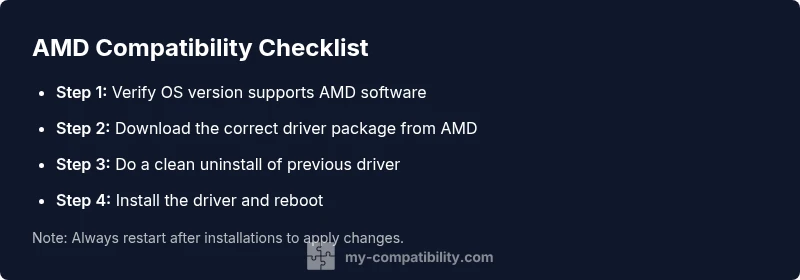
The next step is to align the AMD driver package with your exact operating system build and hardware. Go to the official AMD website and select the driver that corresponds to your GPU series and Windows version. Do not use generic or older “beta” packages unless you understand the risk and intent. After downloading, confirm the installer matches your CPU architecture (x64) and language settings. If your OS has multiple user profiles, install the driver using an administrator account to ensure all components are registered in the correct registry paths. This alignment reduces the probability of compatibility mismatches and establishes a solid foundation for subsequent steps.
Use a clean install and proper uninstallation
A clean install means removing all existing AMD software remnants and installing a fresh copy. Begin by uninstalling Radeon Software and related AMD components from the Windows Settings or Control Panel. Use a dedicated cleanup utility if available to ensure leftover files and registry entries are removed. Restart the system, then run the driver installer as administrator. Choose the custom installation option if offered, and deselect optional components that you do not require. A clean install minimizes the risk of hidden conflicts that can trigger the compatibility error. If the installer reports incompatibility during install, double-check the OS driver channel (e.g., standard vs. optional) and retry with the aligned package.
Check for Windows updates and software prerequisites
Operating system updates often fix known compatibility gaps that affect drivers. Open Windows Update and install any pending security and feature updates. Reboot when prompted and re-run the AMD installer to apply patches cleanly. Some features require turning on or off certain Windows components (like .NET updates or Visual C++ redistributables); ensure these prerequisites are present, stable, and not conflicting with the AMD package. If you’re on a managed device, coordinate with IT to avoid policy blocks and ensure that system-wide updates don’t revert your driver changes during the process.
Identify and manage conflicting software
Background utilities and overclocking tools can conflict with AMD software. Common culprits include third-party GPU monitoring tools, hardware monitoring suites, and system optimization utilities that hook into driver components. Temporarily close or uninstall these programs before attempting another AMD installation. After a successful install, re-enable tools one by one to verify compatibility and identify any potential triggers for the error. If conflicts persist, create a clean user profile or temporary test environment where you can reproduce the error without other software interference.
Perform a controlled rollback or clean reinstallation
If the issue remains unresolved, consider rolling back to a previously stable driver version or performing a second clean install with an alternate driver package channel. Use system restore points if available to revert to a known-good state before reattempting installation. When rolling back, document the exact versions involved and test basic functionality first. If rollback fails to restore stability, escalate to a full reinstallation using the latest supported driver and OS integration path. In rare cases, persistent incompatibility can stem from a hardware fault that a diagnostic test would reveal, requiring professional evaluation.
Post-install testing and validation
After installation, validate by opening Radeon Software, checking driver version in the About page, and running a short benchmark or a standard game to confirm performance stability. Watch for crashes, artifacts, or a failure to launch. Confirm that Windows reports the GPU correctly in Device Manager. If visual anomalies appear, recheck driver installation, bypass any conflicting utilities, and consider additional OS updates or driver reinstallation. Document test results to facilitate future troubleshooting.
Long-term prevention and maintenance
To prevent recurring compatibility issues, adopt a routine: keep OS and drivers updated through official channels, perform periodic clean installations after major updates, and minimize the use of non-essential third-party utilities that interact with the GPU. Maintain a known-good backup of your system or user profile so you can recover quickly from problematic updates. Establish a quick-repeatable sequence for verifying driver integrity—download, install, reboot, and test—so you can reproduce a successful setup on future machines or after OS refreshes.
Steps
Estimated time: 60-90 minutes
- 1
Gather system and software details
Collect your OS version, Windows build, CPU/GPU model, and current AMD software version. This data guides you to the correct driver package and confirms whether the problem is systemic or isolated.
Tip: Note the exact AMD software version and OS update history for future reference. - 2
Download the matching driver package
Visit the official AMD support page and select the driver that matches your GPU model and Windows version. Avoid beta or universal packages unless you have a specific need or guidance.
Tip: Confirm language and architecture (usually 64-bit) before downloading. - 3
Uninstall existing AMD software completely
From Settings > Apps, uninstall Radeon Software and any AMD components. If available, run a cleanup utility to remove residual files and registry entries.
Tip: Restart your computer after uninstall to ensure clean state. - 4
Install the driver and reboot
Run the downloaded installer as administrator, select a custom install if offered, and reboot when prompted. After reboot, verify driver version in the software.
Tip: Choose a clean install option to avoid legacy remnants. - 5
Validate system stability
Open Radeon Software and run a quick test or game session to confirm stability and performance. Check Device Manager for correct GPU listing and absence of errors.
Tip: If issues persist, consider an OS update or rollback to a known good driver. - 6
Document results and plan next steps
Record which version worked, any conflicts observed, and steps taken. Keep a rollback plan in case future updates introduce new issues.
Tip: Maintain a backup or restore point for quick recovery.
Diagnosis: Error message: 'the version of amd software is not compatible' during driver or Radeon Software install
Possible Causes
- highOS build or driver package mismatch
- highCorrupted installer or leftover remnants from previous installations
- mediumConflicts with third-party software
- lowHardware incompatibility with the requested AMD software version
Fixes
- easyVerify OS and GPU compatibility and re-download the correct driver package from the official AMD site
- easyRun a clean uninstall of AMD software and perform a fresh install in Administrator mode
- easyWipe leftovers using a cleanup utility and reboot before reinstall
- easyCheck for conflicting software and temporarily disable them during install
Questions & Answers
What does the error message the version of amd software is not compatible mean?
It typically indicates a mismatch between your operating system or build and the AMD driver/software version. It can also occur when there are leftovers from previous installs or conflicts with other software. Follow a clean install with the correct driver to resolve.
It usually means the driver version and your system don’t align. A clean install of the right driver often fixes it.
How do I know which AMD driver version I should install?
Check your GPU model, Windows version, and the official AMD support page for the matching driver package. Avoid beta versions unless required for testing. Use the standard driver channel recommended by AMD for stability.
Check your GPU model and Windows version, then download the matching driver from AMD’s official page.
Can a Windows update cause this issue?
Yes. Some Windows updates can change system components that interact with drivers, creating compatibility gaps. Ensure you install all recommended updates and test after updates.
Windows updates can affect drivers; install updates and test after each major patch.
Do I need to reinstall Windows to fix this?
Only in rare cases where the OS has deep structural issues or widespread registry corruption. Most problems can be resolved with a clean driver install and OS updates without a full OS reinstall.
Usually not needed; a driver clean install and updates will solve most problems.
What if the problem persists after a clean installation?
If issues persist, consider rolling back to a known-good driver version, testing on a clean user profile, or consulting official AMD support. Document steps and observations for faster resolution.
If it still happens, rollback or seek official support with your test results.
Is it safe to use third-party cleanup tools for AMD drivers?
Use only trusted tools and official utilities where possible. Third-party tools can remove or alter critical components; prefer AMD-recommended methods.
Stick to official cleanup utilities to avoid breaking the setup.
Watch Video
Highlights
- Verify OS and GPU compatibility before installation
- Perform a clean uninstall and fresh install
- Use official drivers and admin access for installs
- Test thoroughly after installation to confirm stability
- Keep a backup/restore point for quick recovery