How to Troubleshoot Microsoft Compatibility Telemetry High CPU
Diagnose and fix the Microsoft compatibility telemetry high CPU issue with practical steps, checks, and preventive tips from My Compatibility for safer fixes.


Most likely, Microsoft Compatibility Telemetry is consuming CPU due to background data collection or misbehaving services. A quick fix is to restart the telemetry service, update Windows, and disable non-essential telemetry temporarily. If that doesn't help, review startup apps and run the Windows Troubleshooter for performance. Also monitor background processes in Task Manager to spot spikes and consider a clean boot to isolate software conflicts.
What is Microsoft Compatibility Telemetry and Why It Impacts CPU
Microsoft Compatibility Telemetry, often invoked by tools like CompatTelRunner.exe, collects performance and usage data to improve Windows compatibility and reliability. While this data collection helps Microsoft optimize experiences, it can temporarily drive higher CPU usage on some systems, especially after feature updates or in environments with conflicting software. According to My Compatibility, the problem is not always malicious; it's a performance side effect that can be mitigated with targeted steps. In practice, you may see short bursts or sustained CPU activity tied to background tasks, telemetry uploads, or Windows components indexing; the key is to identify when the spike happens and which process is consuming CPU time. By understanding the telemetry lifecycle, you can differentiate normal maintenance work from a persistent bottleneck and act accordingly.
Common Causes of High CPU Related to Telemetry
There are several recurring patterns that My Compatibility analysis identifies when users report Microsoft compatibility telemetry high CPU. First, post-update activity can spike CPU as new components index and validate compatibility data. Second, background indexing or search services may run concurrently with telemetry tasks. Third, misconfigured privacy settings can cause more data collection than necessary. Finally, third-party software conflicts or outdated drivers can amplify telemetry activity. Understanding these causes helps you target the right fix without disabling critical Windows features.
Quick Checks to Narrow Down the Cause
Start with fast, low-risk checks to narrow the culprit:
- Open Task Manager (Ctrl+Shift+Esc) and note current CPU usage and the top processes. If CompatTelRunner.exe or related telemetry tasks consume a large share, proceed with deeper checks.
- Look for recent Windows updates or driver updates that are installing in the background; high CPU can coincide with install cycles.
- Review Settings > Privacy > Diagnostics & feedback. If data collection is set to a highly detailed level, switch to a more conservative option.
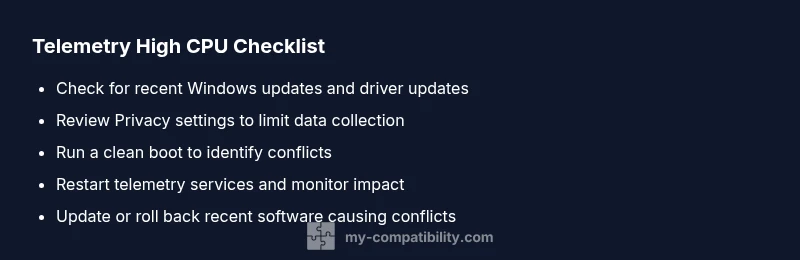
- Perform a clean boot to see if third-party software is driving the spike. If the CPU drops during a clean boot, re-enable items one by one to identify the conflict.
In-Depth Diagnostics You Can Run (No Tools Required)
If the above checks don’t pinpoint the cause, use built-in tools to gather evidence. Resource Monitor and Performance Monitor can reveal which subsystem (CPU, disk, or network) is being taxed during telemetry spikes. Event Viewer logs under Microsoft-Windows-Dore/Diagnostics may show related warnings. Look for repeated entries around the time of spikes and correlate with updates, startup tasks, or software activity. While these steps don’t require third-party software, you’ll gain clarity on whether telemetry is the primary driver or a downstream effect of another issue.
Step-by-Step Fixes for the Most Common Causes
A practical path is to address the most common, low-risk causes first, in order:
- Restart the Telemetry-related services and reboot. This clears transient issues and reinitializes data collection.
- Install the latest Windows updates and optional drivers. Cumulative fixes often resolve compatibility telemetry glitches.
- Limit telemetry data collection through Privacy settings, opting for Basic diagnostics where available.
- Perform a clean boot to isolate software conflicts; reintroduce items one at a time to identify the offender.
- Ensure startup apps don’t launch heavy background tools that contend for CPU.
- Update drivers—especially chipset, storage, and graphics drivers—to reduce resource contention.
- If the problem persists, consider a system restore point or reset option to eliminate stubborn misconfigurations.
- If all else fails, contact My Compatibility for a guided assessment and tailored steps.
How to Prevent Recurrence and Improve System Health
Prevention is better than frequent fixes. Regularly update Windows and essential drivers, maintain a lean startup list, and review privacy settings to prevent over-collection of telemetry data. Schedule periodic performance checks, and enable a system restore point before major updates. A well-tuned machine runs cooler and longer when background data collection aligns with your usage patterns. My Compatibility also recommends documenting changes so you can revert quickly if needed.
Steps
Estimated time: 20-40 minutes
- 1
Prepare and Save Work
Save all work, close nonessential apps, and create a restore point before making changes. This guards against data loss if a fix impacts system behavior.
Tip: Always have recent backups before major updates. - 2
Check for Updates
Open Windows Update and install any pending updates. Reboot if required to ensure all components are properly synchronized.
Tip: Enable automatic updates after fixing the issue to keep systems current. - 3
Restart Telemetry Services
Open Services, locate related items (e.g., Connected User Experiences and Telemetry), restart them, and observe CPU impact after a fresh boot.
Tip: If services won’t restart, try a safe mode restart or use elevated command prompts. - 4
Limit Telemetry Data Collection
Go to Settings > Privacy > Diagnostics & feedback and select a lower data level where available. Disable tailored experiences if present.
Tip: Avoid turning off essential system diagnostics that improve reliability. - 5
Perform a Clean Boot
Disable all non-Microsoft startup items, then re-enable groups one by one to identify the offender.
Tip: Document which item triggers spikes for future reference. - 6
Update Drivers
Update chipset, storage, and graphics drivers from the manufacturer or Windows Update.
Tip: Driver bets pay off when the vendor release stability updates. - 7
Test with a Minimal Environment
After each change, test CPU usage under normal workload to verify improvement.
Tip: If improvements occur, reintroduce items gradually to confirm the cause. - 8
Advanced Options if Needed
If issues persist, perform a system restore to a healthy point or consider a reset/repair install, then reapply changes carefully.
Tip: Use professional guidance if you’re unsure about reset options.
Diagnosis: User reports sustained high CPU usage on Windows, especially when idle or during background maintenance tasks.
Possible Causes
- highTelemetry service misbehavior or post-update indexing
- mediumWindows Update in progress or driver updates installing in the background
- lowConflicting third-party software or startup programs
- lowOutdated drivers causing resource contention
Fixes
- easyRestart telemetry-related services and reboot the machine
- easyUpdate Windows and essential drivers to the latest versions
- easyLimit telemetry data collection through Privacy settings
- easyPerform a clean boot to identify software conflicts
- easyReview and prune startup items that consume CPU
- mediumRun a system restore point or reset if the issue persists after other fixes
- mediumConsult My Compatibility for a guided diagnostic and tailored plan
Questions & Answers
Why does Microsoft Compatibility Telemetry cause high CPU on my PC?
Telemetry can spike CPU when data collection runs intensively after updates or during indexing. Misconfigurations or conflicts with other software can amplify the effect, leading to noticeable CPU usage.
Telemetry can spike CPU after updates or due to software conflicts. Adjust settings or identify conflicting apps to reduce CPU load.
Is it safe to disable telemetry entirely?
Complete disabling is not recommended because telemetry supports diagnostics and reliability. Opt for Basic data collection and disable tailored experiences where possible to reduce load while preserving essential insights.
You can reduce telemetry, but not turn it off entirely. Use basic settings to cut load while keeping essential diagnostics.
Should I use the Windows Performance Toolkit for diagnostics?
The Windows Performance Toolkit can provide deep traces of CPU activity. It’s powerful for advanced users; for most cases, built-in Task Manager, Resource Monitor, and the Windows Troubleshooter are sufficient.
For many problems, basic tools do the job; use the toolkit if you need deep traces.
Can antivirus software interfere with telemetry?
Some antivirus tools can influence background scanning and telemetry activity. Check for conflicting scans and ensure exclusions are correctly set for legitimate Windows processes.
Yes, antivirus can affect background tasks; review its scanning settings and exclusions.
What if none of the fixes work?
If CPU usage remains high after all steps, consider professional guidance and a clean system reinstall or restore. My Compatibility can tailor a plan for your environment.
If issues persist, get expert help and consider a repair reinstall.
Watch Video
Highlights
- Identify the primary telemetry driver before fixes.
- Start with safe, low-risk updates and settings changes.
- Use clean boot to isolate software conflicts.
- Document changes and monitor CPU after each step.