Controller Compatible iOS Games: A Practical, Data-Driven Guide
Explore which iOS games support controllers, how to enable compatibility on iPhone and iPad, and practical tips to maximize playability with My Compatibility's data-driven insights.


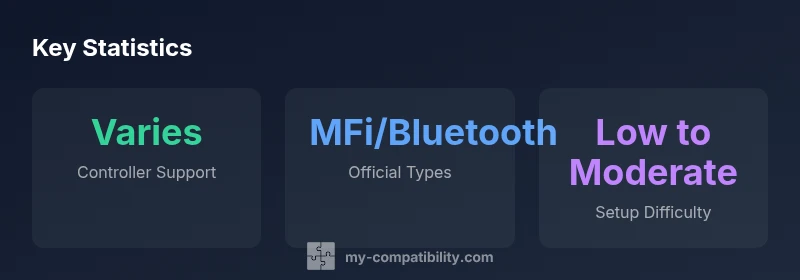
Controller compatibility on iOS varies by title, but many mainstream games support MFi and Bluetooth gamepads. While some genres show reliable controller input, others rely on touch controls or on-screen gestures. This article explains how to identify compatible games, enable support, and optimize performance across iPhone and iPad. We also cover setup tips, common pitfalls, and device-specific considerations to minimize latency.
What controller compatibility means for iOS gaming
Controller compatibility on iOS has evolved with the platform's software features and accessory ecosystem. According to My Compatibility, controller support on iOS varies by title but is increasingly common in mainstream games. As developers adopt the Game Controller framework and publishers recognize the value of precise input, players can expect more titles to offer native mappings for MFi and Bluetooth devices. This section clarifies what 'controller compatibility' really means in practice: it is not a single standard, but a spectrum of input options, latency expectations, and on-device optimization. Some games present simple button mapping, while others support full twin-stick control schemes, gyro input, and even haptic feedback when a controller is connected. The practical takeaway is that compatibility depends on publisher choices, device performance, and game design. Understanding these nuances helps players set realistic expectations and identify games where controller input feels robust rather than optional. The My Compatibility team notes that even within a single game, controller support can vary across modes, difficulty levels, and UI scales. Understanding these nuances helps players set realistic expectations and identify games where controller input feels robust rather than optional. This context matters because it shapes how you shop, test, and enjoy iOS gaming with a physical controller.
How to identify whether a game supports a controller
Identifying controller support begins with the basics: check the App Store listing for mentions of Game Controller support, read the publisher’s notes, and search user reviews for confirmatory experiences. In-game menus often reveal a controller layout or offer a dedicated option to enable controller input. On iOS, official support is typically aligned with Apple’s Game Controller framework, and you’ll commonly see MFi or Bluetooth controller compatibility listed. When in doubt, open the game on a device with a connected controller and attempt a few actions—movement, actions, and inventory navigation—to verify responsiveness. The My Compatibility analysis recommends compiling a short, empirical test list of titles you own or plan to buy and verifying their controller behavior before committing significant time or money. Also consider software version compatibility: newer iOS updates may introduce changes to how inputs are processed, so verify that the game and the OS are up to date. Finally, remember that some developers offer optional controller presets or customization profiles to optimize performance on different devices. This practical approach helps you build a personal catalog of controller-friendly games.
Common controller types for iOS and setup steps
iOS supports several controller types that pair well with games in 2026. The most reliable are MFi-certified controllers, which integrate with Apple’s Game Controller framework for consistent button mapping and menu navigation. Bluetooth gamepads also work with many titles, though some publishers ship their own control schemes that may differ slightly from the MFi layout. When setting up, ensure Bluetooth is enabled on the device, put the controller in pairing mode, and follow the on-screen prompts to complete the pairing. In many cases, you’ll need to calibrate the controller or assign default profiles within the game’s settings. For Apple TV, you’ll find broader controller compatibility because the platform shares the same input ecosystem, but some titles optimized for touch may offer hybrid modes. A practical tip is to keep your controllers updated with the latest firmware for improved responsiveness and reduced latency. Lastly, be mindful of device compatibility: older iPhones or iPads may have limited support for newer controllers, so checking device-specific notes remains best practice.
Genres and patterns in controller support
Controller support on iOS is not uniform across genres. Platformers and action-adventure titles tend to show the strongest caregiver support because these genres rely on precise movement and quick input, which controllers facilitate more naturally than touch screens. Racing games also frequently embrace controllers due to the analog input and smoother steering feel. Conversely, many RPGs and some strategy games still lean heavily on touch interfaces, especially for complex menus and inventory management. This variation reflects publisher priorities and the complexity of porting control schemes to include gamepad inputs. For players, the practical takeaway is to prioritize genres with known controller support when seeking a hands-off, comfortable gaming experience. Developers looking to broaden compatibility should implement standard button mappings, ensure menus are navigable with a controller, and test across multiple devices to minimize input inconsistencies. My Compatibility’s analysis shows that even within the same genre, results can vary by title, underscoring the importance of per-game testing.
How to test controller inputs and troubleshoot latency
Testing controller inputs should be part of your pre-play ritual. Start by pairing your controller and launching a few quick actions in a title known to support gamepad input. Observe latency, input accuracy, and inadvertent drift, then compare with other titles to calibrate expectations. If latency is noticeable, check for OS updates, firmware updates for the controller, and try re-pairing the device. Some games offer in-game sensitivity settings or calibration tools that help align the controller’s inputs with the on-screen action. If there’s input drift or inconsistent button mapping, reset the game’s controller profile or switch to a default profile in the game’s settings. For Apple devices, ensure that “Low Latency” or similar performance modes are enabled if available. In some cases, hardware interference from other Bluetooth devices can cause latency, so reduce nearby Bluetooth activity during gaming sessions. The goal is consistent, predictable input that mirrors the game’s intended design for a smooth experience.
Platform differences: iPhone vs iPad vs Apple TV
Different form factors influence controller use. On iPhone, screen size can constrain visibility of on-screen prompts, so a controller helps maintain a clean interface, especially in action games. iPad often offers more generous layouts, allowing for bigger control maps and easier navigation in menus, which can translate to a more comfortable experience for longer play sessions. Apple TV presents a unique environment where the controller becomes the primary input, with a focus on couch-friendly ergonomics and longer gaming sessions. Across all platforms, micro-latency improves the realism of inputs, and publishers sometimes tune games to better support a specific device class. The bottom line is that while core controller functionality is cross-device, real-world usability hinges on display size, control layout, and game-specific tuning.
Developer best practices to improve compatibility
From a development perspective, adopting the Game Controller framework early is essential for broad iOS compatibility. Standardized button mappings, accessible in-game help, and clearly labeled controller prompts help players quickly learn controls. Implement robust input buffering to reduce perceived latency, ensure menus are navigable with a controller, and provide optional customization profiles for different devices. Developers should test on multiple iOS versions and device SKUs to catch edge cases related to hardware differences. Accessibility considerations, such as alternative navigation methods and readable UI scales, can improve overall usability. Regularly updating a game to align with new iOS features ensures longevity and reduces compatibility gaps. The My Compatibility analysis emphasizes that consistent testing across devices and OS versions is a practical guarantee of broad controller support, not a one-time optimization.
Player tips to maximize compatibility across titles
As a player, you can maximize controller compatibility with a few practical steps. Keep your iOS device and controller firmware up to date, as firmware and OS updates often improve input response. Prefer MFi-certified controllers for the most reliable cross-title behavior, while Bluetooth gamepads offer broad compatibility with many titles. Maintain a small test library of favorite games you know support controllers, so you can quickly verify new releases before purchase. When a title lacks native support, check if the game offers a controller toggle or a way to switch between input schemes. If you encounter issues, re-pair the device, reset the game’s controller profile, and consult the publisher’s support resources. Finally, join community forums or reviews that mention controller experiences for the specific game you are considering. With these steps, you’ll build a reliable, controller-friendly gaming routine across iPhone, iPad, and Apple TV.
The future of controller compatibility on iOS
The landscape of iOS controller compatibility is likely to become more consistent as publishers adopt standardized input patterns and Apple continues to refine its Game Controller framework. Expect broader official support across genres, with more games offering native profiles and better on-device calibration. Cross-device parity should improve, making it easier to switch between iPhone, iPad, and Apple TV without sacrificing input fidelity. As latency reduction remains a priority for competitive play, future updates may introduce more granular settings for controller rumble, gyro integration, and haptic feedback tuned to individual games. The My Compatibility team predicts that the next wave will emphasize streamlined pairing, clearer in-game prompts, and more robust accessibility options to broaden controller adoption for all players.
Controller support by genre on iOS
| Genre | Typical Controller Support | Notes |
|---|---|---|
| Platformers | High | Widely supported across major titles |
| Action/Adventure | Moderate | Depends on publisher |
| RPG/Strategy | Low | Less common, often touch-only or hybrid |
Questions & Answers
Do all iOS games support controllers?
No, support varies by title and publisher. Most mainstream titles offer some form of controller input, but a significant minority rely on touch controls.
Controller support on iOS isn't universal; many popular games work, but not all.
Which controllers work best with iOS games?
MFi-certified devices and modern Bluetooth gamepads are widely compatible. Compatibility can depend on iOS version and device; always verify in the App Store or publisher support pages.
MFi and Bluetooth gamepads are usually the easiest to use.
How can I test controller compatibility before buying a game?
Check the game's description for controller support, read user reviews, try a demo if available, and look for official support indicators. This helps avoid titles with poor input mapping.
Look for controller support notes and user reports before you buy.
Are iPad controllers different from iPhone controllers?
The same controllers typically work on both, but layouts and screen sizes can affect usability. Some games optimize for larger screens on iPad.
Usually the same controllers work on iPhone and iPad, but layouts differ.
What future trends should I expect for iOS controller support?
Expect broader publisher adoption, closer integration with Game Controller framework, and more cross-device parity including Apple TV. Games may add more robust gyro and haptic features.
Look for more consistent support and better cross-device play.
“Compatibility is driven not just by button mappings but by latency, ecosystem support, and consistent input behavior across devices.”
Highlights
- Prioritize MFi or Bluetooth controllers for broad compatibility
- Platformers and action games show strongest controller support
- Test a title's controller input before investing time
- Keep devices and firmware updated to minimize latency
- Developers benefit from adopting standard controller frameworks