Why Is Compatibility Mode Greyed Out? Quick Fixes and Troubleshooting
Urgent step-by-step troubleshooting for why compatibility mode is greyed out, including admin rights, policy checks, and common fixes. Learn fast, safe methods to restore access with guidance from My Compatibility.


The most likely causes are policy restrictions, missing admin rights, or a blocked Compatibility tab. Quick fixes: run the program as administrator, enable the Compatibility tab in File Properties, verify that the feature isn’t blocked by a system policy, and apply any pending Windows updates. If it persists, follow the diagnostic flow below.
Understanding the problem: why is compatibility mode greyed out
The question of why is compatibility mode greyed out touches on permissions, system policies, and how Windows manages legacy application support. In most cases, the feature appears dimmed because the operating system prevents changes to settings that might affect stability, or because an admin policy blocks user-based tweaks. According to My Compatibility, the most common culprits are policy restrictions, missing admin rights, or a misconfigured executable. Getting to the bottom of it involves checking who owns the app, where it’s stored, and whether the tab is turned off by policy. When you know the root cause, you can apply a targeted fix rather than a broad, risky reset. Remember that compatibility is a tool designed to help older software run smoothly, not a universal fix for all problems. By focusing on permissions and policy, you’ll quickly distinguish between user-level limits and system-level controls.
Quick checks you can perform to rule out simple causes
- Confirm you are logged in with an administrator account or that you have elevated privileges for the specific app.
- Right-click the executable, choose Properties, and look for a enabled Compatibility tab. If the tab is missing, a policy or group policy might be hiding it.
- Check the file’s location and attributes (read-only, blocked from the internet, or located on a network drive) that could prevent the Compatibility tab from appearing.
- Ensure your Windows update status is current, since outdated components can disable or alter compatibility options.
- Review third-party security software that could wrap or block the executable and shield settings from changes.
Diagnostic ideas: mapping symptoms to causes
If the Compatibility tab still won’t show, map symptoms to likely causes: a hidden tab often signals policy enforcement; a greyed option can indicate a user-rights issue; a completely missing option could mean the app runs in a sandbox with restricted settings. This section helps you align symptoms with probable causes and prepares you for targeted fixes rather than trial-and-error changes.
Step-by-step fixes for the most common cause
The following steps address the most common reason compatibility mode is greyed out: policy restrictions safely controlled by admin rights. Apply them in order from simplest to more complex to avoid unnecessary changes. If you’re not sure about policy changes, stop and seek guidance to avoid affecting other users or system integrity.
Safety, prevention, and when to seek help
Running tweaks to compatibility settings can affect other software and system stability. Always back up important data before making system-level changes. If you’re part of a managed device (work PC or school laptop), contact your IT administrator before modifying policies or registry entries. In many cases, you’ll gain better results by focusing on permissions and policy rather than intrusive configuration changes.
Steps
Estimated time: 25-40 minutes
- 1
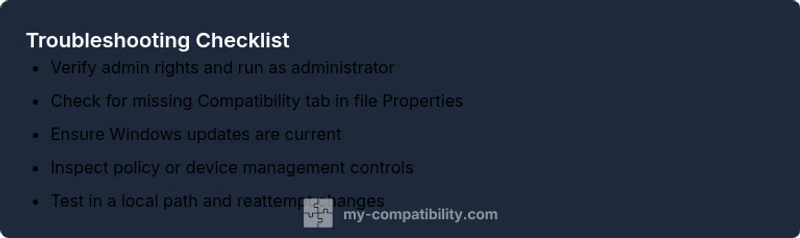
Verify admin rights and run as administrator
Log into an administrator account if possible. Right-click the application, select Run as administrator, and attempt to access the Compatibility tab again. This tests whether elevated privileges are the gating factor. If the tab appears, you’ve confirmed a rights-related cause.
Tip: If you don’t see an Administrator prompt, try a different admin account or contact IT for a temporary elevation. - 2
Check file properties for the Compatibility tab
Navigate to the executable or shortcut, open Properties, and inspect the Compatibility tab. If it is unavailable or disabled, the issue may be policy-driven or a missing Windows feature. Ensure the program isn’t blocked by Windows or marked as read-only.
Tip: Copy the file to a local folder (e.g., C:\Temp) to rule out path-based restrictions. - 3
Review policy and device-management controls
Open the Local Group Policy Editor (gpedit.msc) or your device-management portal and search for policies that affect compatibility mode. If a policy hides or disables the Compatibility tab, consult your IT admin before changing it. This step confirms whether centralized controls are the root cause.
Tip: Document any policy changes and get written approval if you’re on a managed device. - 4
Update Windows and related components
Check for and install any pending Windows updates, including driver updates that can impact compatibility settings. A fresh update can restore features that were temporarily disabled by a pending patch. After updating, reboot and re-check the Compatibility tab.
Tip: Set active hours to minimize disruption, and back up important data before major updates. - 5
Test with a local copy and basic app
Move or copy the app to a local, non-network path and retry the compatibility change. If the issue persists only for the original location, the problem may be path- or security-related. This isolates environmental variables from the software itself.
Tip: If you’re on a corporate device, avoid moving apps across managed folders without approval.
Diagnosis: User reports that Compatibility mode is greyed out or the Compatibility tab is missing
Possible Causes
- highPolicy or group policy blocks compatibility settings
- highInsufficient admin rights or elevated privileges not granted
- mediumFile blocked by Windows security or located on a restricted path
- lowOutdated Windows components or pending updates
- lowApp is a modern UWP or sandboxed environment where compatibility is irrelevant
Fixes
- easyVerify admin rights and run the app as administrator; re-test the Compatibility tab
- mediumCheck Local Group Policy or MDM settings to confirm compatibility options are allowed; adjust if permitted
- easyUnblock the file and ensure it’s not on a blocked network drive; copy to a local path and retry
- easyInstall pending Windows updates and ensure the OS supports legacy compatibility features
- mediumIf policy restrictions prevent changes, contact the IT admin for an exception or alternative workarounds
Questions & Answers
What does it mean when compatibility mode is greyed out?
A greyed-out option usually means the setting is blocked by policy or your permissions prevent changes. It may also indicate the app doesn’t support compatibility settings in its current environment.
A greyed-out option typically means policy or permissions are preventing changes. If needed, contact IT or adjust permissions where allowed.
How can I tell if a policy is blocking compatibility settings?
Check Local Group Policy or the device management console for policies that hide or disable the Compatibility tab. If you’re on a corporate device, your IT department can confirm and adjust the policy if appropriate.
Look for a policy that hides settings or disables Compatibility in the policy editor, or ask IT to verify policy status.
Is running as administrator always needed?
Running as administrator is often enough to enable the Compatibility tab for a single application. If the tab remains hidden, the cause is usually policy or security settings rather than user rights alone.
Admin rights frequently unlock the tab, but if it remains blocked, policy or security settings are the likely cause.
What should I do if I can’t change the policy?
If you can’t change policy settings on a managed device, contact your IT administrator for guidance or request an approved workaround. Do not bypass security controls.
Policy changes typically require IT approval; don’t attempt to bypass controls.
Are there risks to tweaking compatibility settings?
Tweaks can affect other software or system stability. Always back up data before making system-level changes. If you’re on a managed device, seek IT guidance.
There are risks to tweaking; back up data and proceed carefully, especially on work devices.
Watch Video
Highlights
- Identify whether policy or permissions block the tab
- Test admin rights and folder locations first
- Keep Windows updated to preserve compatibility options
- Work with IT for managed devices
- Document steps to streamline future fixes