What’s Maximize Compatibility iPhone Hotspot: A Practical Guide
Learn how to maximize compatibility for your iPhone hotspot. Discover the best settings, how to test with multiple devices, security tips, and troubleshooting to keep everyone connected.


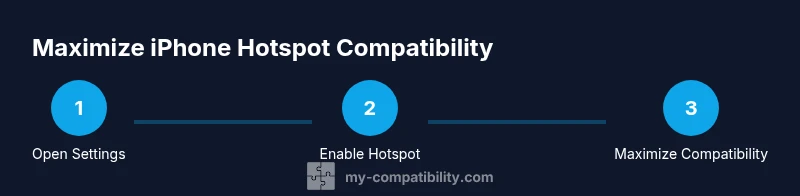
To maximize compatibility with iPhone hotspot, enable Personal Hotspot and Allow Others to Join, then toggle Maximize Compatibility to force 2.4 GHz operation for older devices. Use a simple, unique SSID and a strong password (WPA2). If a device still won’t connect, try USB tethering or Bluetooth as alternatives, or update iOS.
What's maximize compatibility iphone hotspot
The phrase what's maximize compatibility iphone hotspot refers to a set of options on iPhone that help your wireless hotspot play nicely with a wide range of devices. When you enable this mode, the hotspot prioritizes compatibility over raw speed, which can improve connection success for older laptops, budgets, or devices that struggle with newer wireless standards. This setting is especially useful in environments with mixed equipment, from vintage tablets to newer smartphones. By understanding how this feature interacts with Wi‑Fi bands, authentication methods, and device capabilities, you can reduce dropouts and ensure smoother sharing of cellular data. Throughout this guide, we’ll use real-world scenarios and practical steps to help you get the best possible results for your specific mix of devices.
How the 2.4 GHz band affects compatibility
Most older devices only support 2.4 GHz Wi‑Fi. When you enable Maximize Compatibility, the iPhone hotspot leans on the 2.4 GHz band to boost cross‑device reach. While this may reduce peak speeds on newer devices that can use 5 GHz, the trade-off is stronger, steadier connections for devices that would otherwise struggle. If performance matters more than reaching every last megabit, prioritizing 2.4 GHz can be a win. Remember that interference from other wireless networks or appliances on 2.4 GHz can affect stability, so testing with actual devices in your environment is key.
Step-by-step: key settings to optimize compatibility
Maximizing compatibility isn’t just about flipping a single switch. It’s a combination of how you configure the hotspot, who can join, and how devices connect. Start with the basics: enable Personal Hotspot, allow others to join, and set a strong, unique password. Then enable the Maximize Compatibility option to ensure devices that rely on older Wi‑Fi standards can connect without issue. Finally, document any device-specific quirks so you can repeat successful configurations in the future.
Testing across a range of devices
Testing is essential when you’re trying to maximize compatibility. Create a short test matrix that includes at least one modern device, one older device, and one non‑brand device if possible. Record whether each connects successfully, the observed speeds, and any dropouts. If a device fails to connect, compare its Wi‑Fi standard, security settings, and channel usage with what the iPhone hotspot is offering. Small adjustments—like changing the SSID to a simpler name or temporarily turning off other nearby networks—can reveal the root cause.
Common issues and practical fixes
Connection problems often boil down to security settings, channel interference, or device compatibility. Ensure the hotspot password is entered correctly on all devices. If a device won’t see the network, pull up the list of available networks and manually connect by typing the SSID and password. If problems persist, temporarily disable Bluetooth tethering, reboot the iPhone and the client device, or switch to USB tethering for a stable, low-latency link. Keeping software up to date minimizes compatibility gaps.
Security, privacy, and best practices
Security matters even in quick sharing scenarios. Use a strong WPA2 password, avoid overly generic SSIDs, and disable sharing when you don’t need it. Limit the number of connected devices to reduce strain and exposure, and monitor data usage to avoid unexpected costs. Consider periodically re‑checking the hotspot settings after iOS updates, as vendors occasionally adjust defaults that affect compatibility. Finally, remember that public or shared networks can expose devices to risk; only enable hotspot sharing on trusted devices and networks.
USB tethering and Bluetooth: when to use them
If wireless compatibility remains imperfect, USB tethering or Bluetooth tethering can be reliable alternatives. USB tethering delivers a direct, stable link without relying on airwaves, which can help with stubborn devices. Bluetooth is slower but can be useful for single, low-bandwidth devices or when you can’t access a USB port. In environments with many devices, keep USB tethering as a quick fallback rather than a daily method to preserve battery life and ease of management.
Real-world scenarios and outcomes
In a family setting, one newer laptop and two legacy tablets might connect with different success levels. By enabling Maximize Compatibility and testing across all devices, you’ll typically see older devices stabilize in seconds, while newer devices maintain reasonable speeds. In business environments, you may find a mix of employees with various devices; a consistent approach—enable hotspot, maximize compatibility, secure with WPA2, and test—helps reduce interruptions during meetings or fieldwork.
Long-term maintenance for ongoing compatibility
Compatibility isn’t a one‑time fix; it requires ongoing care. Keep iOS up to date, periodically review which devices connect most often, and reset the hotspot password if you notice unauthorized connections. When you upgrade hardware or add new devices, repeat the quick test routine to ensure everyone can connect smoothly. By building a habit of proactive testing and thoughtful configuration, you’ll sustain strong compatibility with minimal effort over time.
Tools & Materials
- iPhone with active cellular data plan(Ensure carrier supports tethering and Hotspot usage.)
- Laptop, tablet, or other Wi‑Fi‑enabled devices(Test with both recent and older devices.)
- Power source(Keep the iPhone charged during testing and use a stable power supply for connected devices.)
- USB-C to Lightning cable (optional)(Use for USB tethering if wireless connections fail.)
- Note-taking app or pen and notebook(Document test results and device quirks to reuse later.)
- Additional test devices (optional)(Helpful when testing a large variety of devices in a single session.)
Steps
Estimated time: 8-12 minutes
- 1
Open Settings and enable Personal Hotspot
Open the iPhone Settings, tap Personal Hotspot, and turn it on. This creates a wireless network your devices can join. Confirm that Allow Others to Join is enabled so colleagues or family members can use the hotspot.
Tip: If you don’t see Personal Hotspot, contact your carrier or update iOS to a recent version. - 2
Set a password and secure SSID
Create a strong, unique Wi‑Fi password and choose a simple, recognizable SSID. A clear name helps devices locate the network quickly and reduces connection errors caused by mis-typing long or ambiguous names.
Tip: Avoid using easily guessable details in the SSID; change it occasionally for privacy. - 3
Enable Maximize Compatibility
If your iPhone offers a Maximize Compatibility option, toggle it on. This prioritizes 2.4 GHz operation to improve compatibility with older devices that don’t support newer Wi‑Fi standards.
Tip: Note that this may reduce peak speeds on newer devices; test both modes if you can. - 4
Choose the right band for you
When available, prefer 2.4 GHz for compatibility with older hardware. Some devices may auto-negotiate and switch bands; forcing 2.4 GHz can stabilize stubborn connections.
Tip: If your device supports 5 GHz, you can temporarily switch back after testing compatibility. - 5
Test with multiple devices
Connect at least two or three devices across a mix of age and brand. Note connection success, speed, and reliability to identify which devices need further adjustments.
Tip: Keep tests concise; document the device name, OS version, and connection outcome. - 6
Troubleshoot common issues
If a device won’t connect, re-enter the password, reboot the device, and re-scan for networks. For persistent problems, try USB tethering or Bluetooth tethering as alternatives.
Tip: Temporarily disabling other nearby networks can help identify interference sources. - 7
Review security settings
Ensure you’re using WPA2 and that the hotspot is not left open. Regularly update passwords and avoid sharing with untrusted devices.
Tip: Document security settings to preserve safe sharing habits.
Questions & Answers
What does 'Maximize Compatibility' do on an iPhone hotspot?
Maximize Compatibility prioritizes broader Wi‑Fi support by leaning toward the 2.4 GHz band and older standards to help legacy devices connect more reliably. It can reduce peak speeds on newer devices, but helps keep more devices online.
Maximize Compatibility makes sure older devices can join your hotspot by using the 2.4 GHz band, even if it means a bit slower speed. It’s helpful when you need every device to connect smoothly.
How many devices can connect to an iPhone hotspot?
The practical limit depends on your iPhone model and data plan. In practice, you may see varying numbers, and performance drops as more devices connect. Start with a conservative number and test.
The exact limit varies by iPhone model; test with the devices you expect to connect to avoid slowdowns.
Should I always use 2.4 GHz for compatibility?
Using 2.4 GHz generally improves compatibility with older devices, but you may lose speed on newer devices that can use 5 GHz. Test in your environment to find the best balance.
2.4 GHz helps older devices connect, but you may sacrifice speed on newer ones. Test to decide.
What about USB tethering as an alternative?
USB tethering provides a steady, wired link that won’t suffer from wireless interference. Use it if multiple devices can’t connect reliably over Wi‑Fi.
If Wi‑Fi is flaky, try USB tethering for a stable connection.
How can I improve hotspot security?
Use WPA2 security with a strong password, disable guest access when not needed, and rotate passwords periodically. Check connected devices to ensure only authorized users stay connected.
Choose a strong password, use WPA2, and review devices periodically.
Watch Video
Highlights
- Enable hotspot and Allow Others to Join
- Enable Maximize Compatibility for older devices
- Use 2.4 GHz when possible for broad compatibility
- Test with multiple devices and adjust as needed
- Use USB tethering or Bluetooth as fallbacks if wireless fails