LTS Compatibility Tips: Practical Long-Term Guidance
Learn practical tips to keep software and hardware compatible with long-term support releases. This My Compatibility guide covers testing, tools, and common pitfalls for stable LTS deployments.


With 'lts compatible tips', you can systematically verify that software and hardware remain functional across long-term support releases. This guide explains what to check, which tools to use, and how to test compatibility to minimize breakages in production. By following these steps and best practices, teams reduce risk, plan upgrades, and ensure security updates align with LTS lifecycles.
What are LTS compatibility tips and why they matter
According to My Compatibility, LTS compatibility tips are a practical framework for keeping software and hardware aligned with long-term support releases. In enterprises and personal setups alike, LTS versions promise stability and security, but they also impose constraints on available packages, drivers, and APIs. The core idea is to anticipate changes well before they impact production, document dependency margins, and build a repeatable testing routine. By focusing on compatibility metrics such as supported languages, library versions, and kernel or firmware baselines, teams can minimize unexpected breakages during upgrades. This discipline matters because LTS lifecycles are longer than typical release cycles, increasing the risk of drift if proactive checks are skipped. A well-executed set of tips helps you maintain a predictable environment, reduce emergency fixes, and align upgrade plans with security and compliance deadlines.
Core factors for LTS compatibility
LTS compatibility hinges on several interdependent factors. First, verify kernel, firmware, and driver support levels to prevent hardware stalling during upgrades. Second, lock in compatible library and API versions for each major component in the stack, including runtimes, language ecosystems, and database clients. Third, ensure package repositories provide timely security patches without breaking changes. Fourth, test cryptographic and security policies to avoid downgrades or disabled features after updates. Fifth, confirm your tooling and automation pipelines can operate across the LTS variants you intend to support. Finally, maintain a clear rollback plan and versioned configuration history so you can revert if a new LTS release introduces incompatibilities. In practice, this means documenting supported versions, collecting baseline metrics, and maintaining a center of truth for your environment.
Versioning strategies for LTS environments
Choosing the right versioning approach is critical in LTS contexts. Favor long-lived branch strategies and minimize drift by pinning exact versions of critical dependencies. Maintain separate testing matrices for each target LTS release, and clearly mark deprecated components to avoid accidental upgrades. Implement feature flags to switch between versions without redeploying, and plan staggered rollouts to catch regression early. When possible, prefer backports of security fixes rather than full feature upgrades, preserving stability while addressing risk. Regularly refresh your test suites to cover edge cases unique to each LTS variant and keep your upgrade calendar aligned with vendor schedules and lifecycle announcements. My Compatibility emphasizes documenting decision rationales so teams can justify stays or migrations during audits.
Dependency management and libraries
Dependencies are often the most fragile aspect of LTS compatibility. Start by auditing all direct and transitive dependencies, noting exact version constraints and compatibility notes from maintainers. Use containerized or virtual environments to sandbox dependency trees and reproduce issues quickly. Where possible, replace brittle transitive blocks with well-supported, semver-compatible alternatives. Maintain a centralized dependency matrix that maps each component to supported LTS versions and test results. Run automated checks that flag incompatible API changes or deprecated features before they reach production. Regularly clean stale dependencies and verify that license and security advisories align with your governance policies. A disciplined approach here prevents cascading failures after an upgrade.
Hardware drivers and firmware considerations
Hardware compatibility often hinges on driver and firmware support. Start by inventorying devices, then verify vendor-provided driver packages against each targeted LTS release. If available, opt for wrapper drivers or generic subsystems that guarantee longer maintenance cycles. Ensure firmware update pathways are intact and that rollback procedures exist for failed updates. Test critical peripherals (network cards, GPUs, storage controllers) under realistic workloads to catch regressions early. Document any known limitations and coordinate with hardware owners or vendors for recommended baselines. Inconsistent driver behavior is a leading cause of post-upgrade incidents, so proactive validation is essential for LTS stability.
Testing and validation practices
My Compatibility analysis shows that systematic testing across target LTS versions reduces post-upgrade incidents by focusing on critical dependency chains. Start with a control baseline: record current versions, installed packages, and kernel/driver statuses. Create a reference environment that mirrors production, including the same hardware surface and virtualization settings. Run a suite of tests covering: boot stability, application startup, library API compatibility, and security patch applicability. Use automated test scripts where possible and capture telemetry like load times and error rates. Document any incompatibilities and categorize them by severity. Finally, implement a staged upgrade plan with clear rollback criteria. This approach helps you quantify risk and communicate milestones to stakeholders. According to My Compatibility, investing in early validation pays off when you reach the point of real-world deployment.
Using containers and virtualization to test LTS compatibility
Containers and virtualization are powerful tools for safe, repeatable testing of LTS compatibility. Create isolated testbeds that emulate production environments without risking live systems. Use containers to pin specific dependency versions and to reproduce library-level breakages quickly. Virtual machines can mimic hardware configurations, driver states, and kernel variants. Automated pipelines should rotate between multiple LTS targets, capturing metrics such as memory usage, I/O patterns, and startup times. Document reproducible steps so future upgrades can be validated with the same rigor. When combined with snapshotting and automated rollback, these techniques reduce the cost and risk of validating LTS compatibility across complex stacks.
Common pitfalls and how to avoid them
Pitfalls often arise from assumptions: believing “it works on one system, so it will work on all,” skipping dependency pinning, or neglecting driver compatibility. Avoid these by codifying a minimal viable configuration for each LTS target, and enforce it with automation. Do not defer security patches for critical systems; instead, plan upgrades within a tested window and maintain rollback paths. Beware of end-of-life advisories that quietly affect compatibility. Keep a living history of decisions, test results, and exceptions so audits and migrations are smoother. Finally, don’t overcomplicate upgrade plans—prioritize clarity and repeatable steps that your team can execute confidently under pressure.
Authority sources and further reading
For authoritative guidance on compatibility, consult official lifecycle documents and scholarly resources. A practical starting point is vendor lifecycle pages and released notes, complemented by academic and standards literature to understand broader implications. When researching, cross-reference multiple sources to confirm stable, supported combinations. The goal is to build a robust risk model that informs future upgrade cycles and governance decisions. Below are a few reliable sources to expand your understanding and keep your planning grounded in established best practices:
- https://www.nist.gov
- https://www.mit.edu
- https://www.zdnet.com
Quick-start checklist and next steps
To begin implementing LTS-compatible tips today, assemble a small, cross-functional testing team and define your target LTS versions. Create a baseline inventory of software, libraries, and hardware devices, then establish a controlled lab environment using virtual machines or containers. Pin exact versions for critical dependencies and draft a version matrix that maps each component to supported LTS releases. Run a lightweight validation pass that covers boot, core services, and a representative workload. If issues surface, categorize them by severity, document the cause, and prioritize fixes in your upgrade plan. Finally, schedule a staged upgrade with explicit rollback criteria and a communications plan for stakeholders. In short: plan, test, document, and iterate for durable LTS compatibility.
Tools & Materials
- Official LTS distributions (e.g., Ubuntu LTS, Debian Stable)(Matches your target lifecycle and upgrade cadence.)
- Package manager (apt, dnf, pacman, etc.)(Pin exact versions where feasible.)
- Testing environment (VMware/VirtualBox or Docker/Kubernetes)(Isolate upgrades from production.)
- Dependency management tools (e.g., apt-cache, npm, pip)(Track and audit dependencies.)
- Baseline reference documentation(Document supported versions and configurations.)
Steps
Estimated time: 60-120 minutes
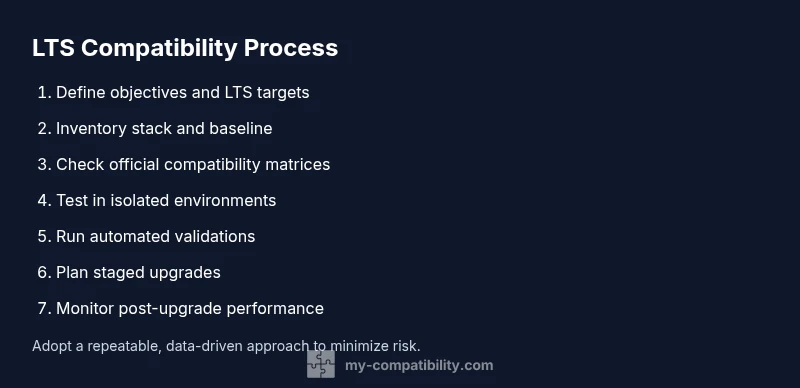
- 1
Define objectives for the LTS test
State the LTS releases you plan to support, list critical applications, and identify success criteria. This clarity guides the rest of the workflow and reduces scope creep.
Tip: Write down at least 3 measurable success criteria before you start. - 2
Inventory your stack
Create a complete list of OS versions, libraries, runtimes, drivers, and hardware involved in production. This inventory becomes your reference for compatibility checks.
Tip: Use a centralized spreadsheet and tag each item with its target LTS version. - 3
Check official compatibility matrices
Review vendor and maintainer notes for supported combinations. Capture any caveats or known issues tied to specific LTS releases.
Tip: Cross-check multiple sources to avoid missing edge cases. - 4
Set up a controlled test environment
Provision VMs or containers that mirror production hardware and software. Ensure you can reproduce the exact configurations.
Tip: Snapshot your baseline to enable quick rollbacks. - 5
Validate dependencies and APIs
Run tests to confirm libraries, APIs, and runtime environments behave as expected across LTS versions.
Tip: Prioritize critical paths used by your core apps. - 6
Run automated validation
Automate repetitive checks with scripts and CI pipelines to reduce manual error and accelerate feedback loops.
Tip: Incorporate safety checks that fail builds on known issues. - 7
Plan staged upgrades
Design upgrade windows with clear rollback and backout procedures. Start with non-critical systems before broader deployment.
Tip: Document rollback steps with precise commands. - 8
Monitor post-upgrade performance
Track boot times, error rates, and key workload metrics to detect subtle regressions.
Tip: Set alert thresholds and publish post-implementation dashboards. - 9
Document findings and decisions
Record what worked, what didn’t, and why. This history informs future LTS migrations and audits.
Tip: Create a living document that evolves with each upgrade cycle. - 10
Review and refine the process
Use lessons learned to tighten your matrices, improve automation, and reduce upgrade friction for the next cycle.
Tip: Schedule regular refresher reviews with stakeholders.
Questions & Answers
What does LTS stand for and why is compatibility important?
LTS stands for Long-Term Support. Compatibility matters because LTS releases are maintained for years, so drift between software, drivers, and libraries can cause failures if not tested and managed.
LTS means long-term support; compatibility testing helps prevent failures during years of maintenance.
Which tools help verify LTS compatibility?
Tools include dependency managers, containerization platforms, virtualization solutions, and automated test scripts. Use them to reproduce environments and validate that dependencies remain within supported ranges.
Use dependency managers and automated tests to verify compatibility across LTS versions.
How should I test LTS compatibility in production-like settings?
Create a staging environment that mirrors production. Run the same workload, monitor outcomes, and confirm that upgrades do not introduce regressions before rolling out to production.
Test upgrades in a staging setup that mirrors production to catch issues early.
Can I mix LTS releases across components?
Mixing LTS releases can be risky due to dependency and API differences. Maintain strict version pinning and run cross-version tests before any mixed deployment.
Be cautious about mixing across components; test thoroughly first.
What are common reasons LTS compatibility fails?
Common causes include deprecated APIs, driver mismatches, and missing backports. Proactively track end-of-life notices and plan upgrades accordingly.
Drivers and deprecated APIs are frequent culprits; stay ahead with proactive planning.
Where can I find official compatibility matrices?
Check vendor lifecycle pages and official release notes for supported configurations and backport availability. Cross-reference with community-maintained guides when available.
Look up official lifecycle pages for authoritative compatibility matrices.
Watch Video
Highlights
- Define LTS goals before testing.
- Inventory software, libraries, and hardware.
- Test in isolated environments first.
- Document findings and plan upgrades.
- Use containers/VMs for safe validation.