How to Save Excel Without Compatibility Mode
A comprehensive, step-by-step guide showing how to save Excel workbooks in modern formats without triggering compatibility mode, with practical tips, checks, and best practices for cross-version collaboration.


Saving Excel files without compatibility mode ensures you retain the latest features and formulas across Excel versions. In this guide, you’ll learn how to save in modern formats (.xlsx), upgrade file compatibility, and avoid older .xls defaults. We’ll cover practical steps, common pitfalls, and quick checks to confirm the file isn’t opening in compatibility mode.
Why saving Excel without compatibility mode matters
According to My Compatibility, saving in the modern format (.xlsx) preserves the latest features and formulas across Excel versions. The My Compatibility team found that many users still worry about compatibility mode when collaborating across devices or teams, which can limit functions like dynamic arrays, newer chart types, and improved data handling. If you’re asking how to save excel without compatibility mode, you’re taking a crucial step toward future-proofing your work. This section explains why compatibility mode exists, what it does to your workbook, and how upgrading the file format can unlock the full power of your data. By avoiding compatibility mode, you also reduce the risk of missing updates or formatting quirks when colleagues open your file on newer Excel builds. As you read, you’ll see practical hints, real-world examples, and quick checks to confirm you’re working in the current format.
Understanding compatibility mode in Excel
Compatibility mode is a setting that signals Excel to preserve features supported by older file formats, primarily .xls. When a workbook opens in compatibility mode, Excel may limit or warn about newer features introduced in the newer .xlsx format. This helps ensure older versions can still read the file, but it can also hinder access to modern functions like advanced formulas, dynamic arrays, and richer data types. You’ll often notice a “Compatibility Mode” notification in the title bar or a prompt when saving. Understanding this mode is essential when you’re preparing a workbook for cross-version sharing. The goal is to determine whether you truly need compatibility or if you should convert to the current format to unlock full capability.
Choosing the right file format: .xlsx vs .xlsm vs .xls
The best practice for most modern Excel work is to save as .xlsx, which supports most features introduced since Excel 2007. If your workbook contains macros, you’ll want the .xlsm format; however, macro-enabled workbooks can still be saved in .xlsx for non-macro content, with macros extracted or re-added later. The legacy .xls format is limited in capacity and feature support and is generally only necessary for very old systems or specific compatibility needs. Before saving, consider your audience: if collaborators use Excel 2010 or newer, .xlsx is the standard. If macros or VBA are essential, use .xlsm and validate compatibility using the built-in checker. Remember: the more modern the format, the fewer compatibility prompts you’ll see.
Step-by-step: Save as a modern Excel workbook (.xlsx)
- Open the workbook you want to save in a modern format.
- Go to File > Save As and choose a location.
- In the Save as type drop-down, select Excel Workbook (*.xlsx).
- If prompted to upgrade or convert, confirm the conversion to the current format.
- Click Save and verify the file extension is .xlsx.
- Re-open and run a quick check on formulas and formatting to ensure no issues.
- If your workbook contains templates or data connections, review those components to ensure they survived the upgrade.
- Create a backup copy before distributing to teammates, just in case.
- If you must preserve macros, save as .xlsm and verify macro functionality after the save.
Why this matters: explicitly saving as .xlsx avoids compatibility-mode limitations, enabling you to leverage newer Excel features and smoother collaboration.
Verifying you’re not in compatibility mode after saving
After saving, confirm that the workbook is in the current file format by inspecting the title bar and the file extension. A clean save to .xlsx should remove the “Compatibility Mode” label and reveal the modern features in the ribbon. You can also use Review > Check Compatibility to identify any features that would be lost in older formats. If you still see a compatibility warning, repeat the upgrade step or run Convert under File > Info if the option appears. This ensures your file is ready for colleagues using the latest Excel releases and reduces version-related surprises in shared workbooks.
Common pitfalls and how to avoid them
Many users encounter issues when sheets rely on older features that aren’t supported in .xlsx or .xlsm scenarios. To avoid this, run a feature check before saving: look for charts or formulas that behave differently in new formats, ensure conditional formatting rules are supported, and confirm data validation rules are intact. If your workbook links to external data sources, re-establish connections after upgrading to ensure data refreshes work as expected. Another common pitfall is forgetting to update templates or add-ins that may not be compatible with newer formats. Always test the upgraded file in an environment identical to where it will be used, and keep a legacy copy as a fallback until you’ve validated the workflow with all stakeholders.
Advanced tips: macro-enabled workbooks and collaboration considerations
If your workbook uses macros, save as .xlsm to retain macro functionality. When collaborating across teams, consider distributing a read-only version for review and sharing a fully functional version for update work. For shared workbooks, avoid dynamic arrays or features not supported by all Excel versions in use and communicate version requirements upfront. If you receive a workbook that prompts compatibility warnings, you can convert it to the current format or export data to a new workbook with updated formulas to minimize friction. Finally, establish a simple protocol for future saves: check, convert, test, and communicate results to your team. This reduces back-and-forth and ensures everyone works with the latest capabilities.
Cross-version considerations and collaboration best practices
Across teams, you’ll encounter different Excel builds. The most reliable approach is to standardize on the current file format (.xlsx) for all shared workbooks and to use .xlsm only when macros are essential. Share a short checklist with teammates: confirm they’re using Excel 2016 or newer, verify that there are no compatibility mode prompts, and ensure macros are enabled where appropriate. For cloud collaboration (OneDrive, SharePoint), save to the cloud in .xlsx to support real-time co-authoring and restore points. By setting clear expectations and validating compatibility early, you minimize version conflicts and improve workflow continuity.
Quick recap and practical next steps
- Prefer .xlsx for new workbooks to avoid compatibility mode.
- Use Convert (if available) to upgrade older files to the current format.
- Run Check Compatibility to catch feature loss before sharing.
- If macros are needed, save as .xlsm and validate macro behavior.
- Establish a simple, repeatable save protocol for teams to follow.
Tools & Materials
- A computer with Microsoft Excel (Office 365 or Excel 2016+)(Ensure you have the latest updates for best compatibility checks.)
- Backup copy of the workbook(Always save a previous version before converting formats.)
- Active internet connection (optional)(Useful for verifying cloud-based collaboration features.)
- Macro-enabled workbook (if applicable)(Only needed if you rely on VBA/macros in the file.)
- Notes or a checklist(Use to track which features might be affected by format upgrade.)
Steps
Estimated time: 15-25 minutes
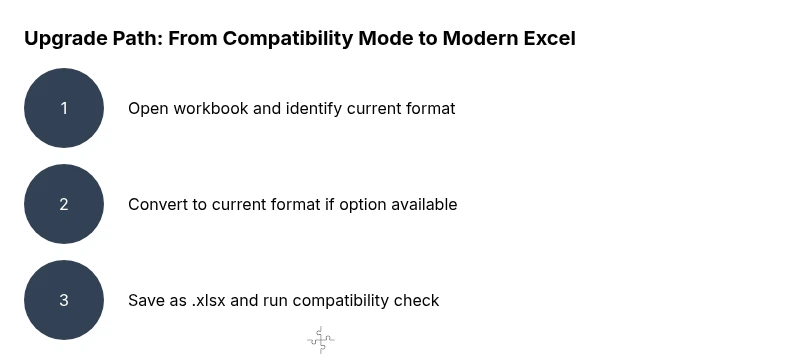
- 1
Open the workbook
Launch Excel and open the target workbook you want to upgrade. Review any open prompts and ensure all data is visible and intact before proceeding.
Tip: Work on a copy to prevent accidental data loss during conversion. - 2
Check current format
Go to File > Info and look for a message about compatibility mode. If you see a Convert option, your file is in an older format and may require upgrading.
Tip: If you don’t see any message, you’re likely already in a modern format. - 3
Convert to the current format (if available)
If Convert appears, click Convert to upgrade to the latest Excel file format. This helps remove compatibility constraints even before saving.
Tip: Always confirm prompts and review the feature list that may be affected by the change. - 4
Save as .xlsx
Choose Save As, select the location, and in the Save as type dropdown, pick Excel Workbook (*.xlsx).
Tip: Verify the file extension after saving to ensure it’s .xlsx. - 5
Review advanced features
Run Check Compatibility (Review > Check Compatibility) to identify features not supported by older versions.
Tip: Address any warnings before final sharing. - 6
Handle macros if needed
If your workbook contains macros, save as .xlsm to preserve them; otherwise, remove or re-create macros in a separate file.
Tip: Macros can trigger security prompts—be prepared for re-enabling them on trusted machines. - 7
Update data connections
After upgrading, re-establish any external connections and verify data refresh works as expected.
Tip: Test with a fresh data pull to confirm reliability. - 8
Test collaboration
Open the file on another device or with a teammate to confirm no compatibility warnings appear.
Tip: Use cloud storage for real-time collaboration where possible. - 9
Document the process
Add a short note or changelog for teammates, describing that the workbook is in the current format and what features to expect.
Tip: Keep a master checklist for future saves to save time.
Questions & Answers
What is compatibility mode in Excel and why does it matter?
Compatibility mode preserves old features for readers on older Excel versions. It can limit new functions and formatting options, causing issues when collaborating across teams using newer software. Upgrading to a current format typically resolves these limits.
Compatibility mode keeps your workbook compatible with older Excel versions, but it can block new features. Upgrading to the current format usually solves this.
Which file formats should I consider for modern workbooks?
For most users, save as .xlsx. If macros are required, choose .xlsm. The legacy .xls is rarely necessary unless you must support very old software.
Use .xlsx for standard workbooks, and .xlsm if you need macros. Avoid .xls unless required by old systems.
How can I check if a saved workbook is in compatibility mode?
After saving, inspect the title bar for a Compatibility Mode label or run Review > Check Compatibility. Both indicate whether the file uses older features.
Look for a compatibility label in the title bar or run Check Compatibility to confirm.
What should I do if I need macros but must share with newer Excel versions?
Keep the macro-enabled version as .xlsm for workbooks requiring VBA, while sharing a read-only .xlsx version for non-macro users. Document which version to use for each audience.
If macros are needed, keep .xlsm for the macro-enabled file and provide a separate .xlsx version for non-macro users.
How long does it typically take to upgrade a workbook format?
Most upgrades take 10-20 minutes for a typical workbook, depending on size and complexity. Always back up first and verify after saving.
Expect about 10-20 minutes for a standard workbook, including a quick compatibility check.
Can I automate the upgrade process for multiple files?
Yes. You can batch process files via Office scripts or PowerShell, but test a subset first to ensure consistency in formatting and macros.
Automation is possible with scripts, but always test on a small batch before full deployment.
Watch Video
Highlights
- Upgrade to the current format (.xlsx) for feature parity.
- Use Convert and Check Compatibility to minimize surprises.
- Save backups and test on multiple devices.
- Handle macros separately to preserve functionality.
- Communicate the new format expectations to your team.