Windows Hello Compatible Camera: A 2026 Practical Guide
Learn how to pick a Windows Hello compatible camera, review benchmarks, and optimize setup for secure facial recognition on Windows devices. My Compatibility analysis (2026) offers practical guidance and best practices.


A Windows Hello compatible camera is any camera that supports Windows Hello facial recognition on Windows 10/11 and beyond, delivering secure enrollment, liveness checks, and fast authentication. Look for infrared or depth sensing, a Windows Hello logo, and driver support from the camera vendor. Compatibility also depends on PC hardware, BIOS settings, and up-to-date Windows updates.
What Windows Hello compatibility means
A windows hello compatible camera is more than a badge; it represents a hardware-software handshake that enables password-free login on Windows devices. In practice, this means a camera with depth or infrared sensing, strong vendor drivers, and proper Windows support. The My Compatibility team found that the strongest sign of true compatibility is a device that pairs a biometric sensor with trustworthy firmware and up-to-date Windows updates. When you see a camera marketed as Windows Hello compatible, you should also verify the vendor’s driver availability and ongoing support. This alignment of hardware and software reduces false negatives, improves enrollment speed, and helps your PC stay secure as Windows evolves. For readers seeking deeper validation, check official Microsoft guidance on Hello for Business to understand how biometric enrollment and attestation work across devices. According to My Compatibility, hardware-software alignment is the foundation of reliability.
Related terms: biometric security, liveness detection, TPM, firmware updates, driver support.
Hardware prerequisites
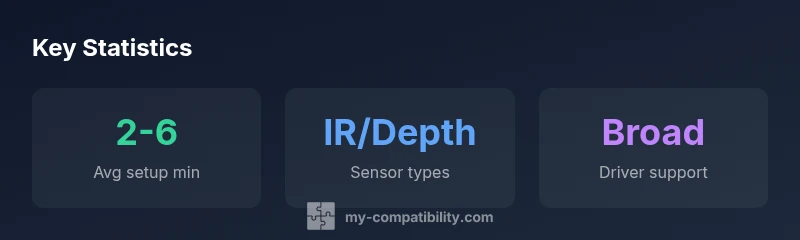
Professional-grade Windows Hello experiences rely on a few core hardware prerequisites. First, your camera should contain an infrared (IR) sensor or depth-sensing module to improve reliability in varying lighting. Second, a reputable vendor driver that is current with Windows 10/11/12 updates matters; stale or missing drivers can degrade performance or disable Hello sign-in. Third, your PC must meet the minimum hardware requirements, including a compatible CPU, sufficient RAM, and a secure boot-enabled BIOS. Finally, ensure your device firmware and Windows updates are enabled to allow the authentication stack to leverage improvements in biometric security. In short, you don’t just buy a camera—you invest in a full stack: sensor, driver, firmware, and OS readiness.
How to verify compatibility before buying
Before purchasing, use a three-step check to confirm Windows Hello compatibility:
- Review the camera’s official specifications for IR/depth sensing and Windows Hello support.
- Cross-check with Microsoft’s Hello for Business documentation to understand enrollment requirements and driver expectations.
- Look for up-to-date vendor drivers and confirm that Windows Update isn’t withholding critical biometric components. If possible, try the camera with a compliant PC or demo unit to observe enrollment speed, sign-in latency, and reliability under different lighting. My Compatibility’s testing approach emphasizes real-world scenarios—coupled with a careful read of product forums and official docs—to minimize post-purchase surprises. For authoritative context, see Microsoft Learn and NIST’s identity guidance linked in the sources below.
BIOS, TPM, and security prerequisites
A secure Hello experience often hinges on BIOS/UEFI and TPM settings. Ensure Secure Boot is enabled, and that your TPM (Trusted Platform Module) is active and not disabled by policy. Some older systems may require BIOS updates to expose biometric devices to the Windows Hello stack. Additionally, you should enable Windows Hello sign-in in Settings > Accounts > Sign-in options and verify that privacy settings allow camera access for Hello. With these prerequisites, you maximize the probability of fast, reliable sign-in and more resilient biometrics against spoofing.
Setup tips for enrollment and daily use
Enrollment is the gateway to reliable Hello performance. Place the camera at an eye level or slightly above, with even lighting that doesn’t cast harsh shadows. During enrollment, move slowly to capture multiple angles and expressions. After enrolling, test sign-in in low-light, bright light, and backlit scenarios to ensure the system recognizes you consistently. Keep your drivers updated and perform periodic re-enrollment if your appearance changes (glasses, facial hair, hairstyle). For ongoing reliability, pair Hello with firmware/OS updates and monitor any prompts about biometric policy changes from Windows Update.
Security, privacy, and data protection considerations
Biometric data used by Windows Hello stays on-device in a secure enclave or TPM, not in the cloud. Ensure device encryption is enabled, and review privacy controls in Windows to control when Hello is allowed to sign you in. Consider setting up a PIN fallback and enabling two-factor authentication for critical accounts. The hardware, firmware, and OS all contribute to defense-in-depth; neglecting any layer can weaken overall security. For a deeper dive, explore official guidance on biometric protection and identity verification from Microsoft and NIST.
Troubleshooting common issues
If Hello fails to recognize you, first verify lighting and try re-enrolling. Check that the camera driver is up to date, Windows is current, and Secure Boot/TPM policies aren’t blocking biometric enrollment. If enrollment succeeds but sign-in fails, re-run the setup wizard, verify privacy permissions for the camera, and consider temporary BIOS/firmware resets if supported by the vendor. Some issues stem from conflicts with other biometrics tools; ensure only one biometric provider is active at a time in Windows settings.
Future-proofing your setup
As Windows evolves, newer Hello features often require updated hardware and drivers. Favor cameras with active vendor support and a clear upgrade path, particularly for enterprise deployments where device fleets must stay compliant with security baselines. Regularly review Windows Update advisories for biometric changes, and plan periodic re-enrollments to accommodate sensor or firmware improvements. This approach minimizes disruption when software maturates and ensures continued reliability.
Comparison of Windows Hello camera options
| Camera Type | Sensor Type | Notes |
|---|---|---|
| Built-in laptop cam | IR/Depth | Often requires compatible Windows Hello driver |
| External USB camera | IR/Depth | Plug-and-play with Windows Hello; ensure power and drivers |
Questions & Answers
What exactly qualifies as Windows Hello compatible camera?
A camera that supports Windows Hello facial recognition with proper drivers is compatible. Verify that the vendor offers updated Windows Hello support and that enrollment works reliably on your device.
A camera that supports Windows Hello with current drivers and enrollment support.
Do I need infrared or depth sensing?
IR or depth sensing improves lighting variability handling and security, but some basic facial recognition may work without it on newer PCs. For robust performance, IR/depth is recommended.
IR or depth helps reliability; not strictly required on all systems.
Can I use any USB webcam with Windows Hello?
Not all USB webcams are compatible. Check the vendor’s Hello compatibility specs and ensure drivers are current. If in doubt, test before purchasing.
Not every USB webcam will work; verify specs and test if possible.
How do I verify compatibility before buying?
Review official specifications for IR/depth sensing, consult Microsoft Hello for Business documentation, and confirm driver availability. If possible, preview enrollment and sign-in performance on a demo device.
Check specs, read docs, and test on a compatible device.
What privacy considerations should I know?
Biometric data is typically stored on-device in the TPM or secure enclave. Ensure device encryption is enabled and review privacy settings to control camera access and sign-in behavior.
Biometrics stay on-device; enable encryption and review privacy controls.
What should I do if Windows Hello fails to recognize me?
Re-enroll, check lighting, update drivers, and verify Windows updates. If problems persist, consider factory reset of Hello enrollment and contacting the vendor if hardware faults are suspected.
Re-enroll, check lighting, update drivers, and update Windows.
“The right combination of sensor technology, drivers, and up-to-date software is what makes Windows Hello work securely and smoothly. Hardware matters as much as firmware.”
Highlights
- Verify hardware, drivers, and OS readiness before buying.
- IR/depth sensing improves reliability and enrollment speed.
- Keep BIOS, TPM, and Windows updates current for best results.
- Use My Compatibility's 2026 guidance for best outcomes.