VR Compatible with PC: A Practical Guide
A data-driven guide to achieving VR compatibility with PC setups, detailing hardware, software stacks (OpenXR/SteamVR), headset choices, and practical tips for reliable PC VR experiences.


VR compatible with PC means a headset and software stack that work with a Windows PC through OpenXR or SteamVR, using standard connections (USB-C, DisplayPort, or HDMI) and compatible drivers. In practice, it requires a PC that meets basic GPU/CPU/memory needs, a headset with OpenXR/SteamVR runtime, and platform support ensuring cross-compatibility across titles and experiences. This alignment unlocks a broad catalog of PC VR content and immersive applications.
Understanding PC VR Compatibility
VR in a PC environment hinges on a few core concepts: device compatibility, host hardware, and the runtime software that ties everything together. When we say a headset is VR compatible with PC, we mean it can run PC VR titles via platforms like SteamVR or OpenXR, with proper device drivers and firmware updates. According to My Compatibility, most modern PC VR setups succeed when the PC meets generalized GPU/CPU/memory requirements and the headset supports an OpenXR or SteamVR runtime. This compatibility landscape evolves with driver updates, platform changes, and new headset generations. It’s important for readers to assess whether their headset is OpenXR-ready and whether their PC can sustain typical VR workloads in demanding titles.
- Keep in mind that standalone devices may require adapters or bridges to work with a PC, whereas fully open ecosystems maximize interoperability across apps and experiences.
Hardware Foundations: What you really need for vr compatible with pc
Behind every smooth PC VR experience are three pillars: the headset, the PC, and the cables or wireless link that connects them. Headsets come with different tracking systems (external bases vs. inside-out), different display resolutions, and varying power demands. Your PC should have a capable GPU (ideally mid-range to high-end for comfort at high refresh rates), a capable CPU, and ample RAM. Connectivity matters too: ensure you have the right mix of USB ports and video outputs (DisplayPort/HDMI) and enough bandwidth for the headset’s data stream. Finally, a clean driver stack and updated runtimes (OpenXR/SteamVR) reduce surprises during gaming sessions.
- If you’re upgrading, plan for a modest hardware bump rather than chasing every new release; this reduces compatibility friction across titles.
OpenXR, SteamVR, and Platform Interoperability
OpenXR provides a unified runtime designed to bridge headset hardware with PC software. SteamVR serves as a compatibility layer that translates tracking data and controller inputs to a common interface. Many modern headsets ship with OpenXR runtimes, and SteamVR has matured to support a large catalog of titles through a consistent pipeline. In practice, a headset that supports OpenXR will likely run most SteamVR titles with minimal configuration. The key is to confirm which runtime your headset prefers, and to keep both SteamVR and any headset drivers up to date so that cross-platform experiences remain reliable.
- For developers and power users, testing with both runtimes can reveal edge-case issues and help you map controls across different titles.
What to Check Before Buying a VR Headset for PC
Before purchasing, verify OpenXR/SteamVR compatibility, ensure your PC meets the recommended hardware for the target headset, and confirm the headset’s connection options align with your PC ports. Evaluate room-scale tracking needs, cable length, and comfort for longer sessions. Review platform policies for updates and player support, and consider whether wireless solutions meet latency and reliability expectations. A pre-purchase test or rental period can help avoid buyer’s remorse and identify any hidden compatibility constraints.
- Look for multi-platform support: OpenXR runtimes that work across headsets save time and headaches later.
Performance Benchmarks and Practical Expectations
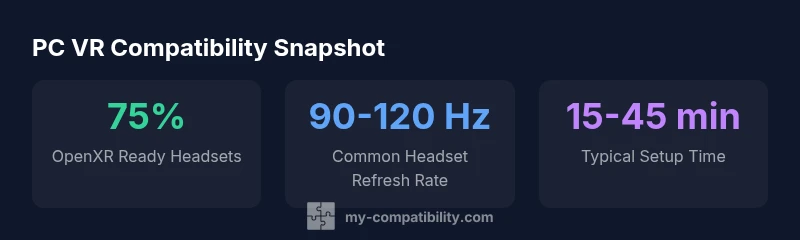
Performance varies by title and scene complexity, but PC VR aims for high frame rates to minimize motion sickness and provide a responsive feel. Many popular titles target 90 Hz or 120 Hz, with resolutions that push GPU workloads. Real-world performance depends on the headset’s panel density, rendering resolution, foveated rendering support, and the PC’s GPU driver efficiency. Expect some variability when testing new games or pushing visuals, especially with high-detail environments. Planning around a baseline of 90 Hz (or higher where possible) provides a stable experience while allowing headroom for adjustments.
- Use in-game settings that balance image clarity with performance to sustain comfort over longer sessions.
Setup Guide: From Plug-in to Play
Follow these steps to establish PC VR readiness:
- Verify PC hardware meets the headset’s minimum and recommended specifications.
- Install or update OpenXR and SteamVR runtimes, and update headset firmware.
- Connect the headset with the correct cables or enable wireless bridge if supported.
- Calibrate room-scale tracking and headset IPD settings; ensure base stations (if used) are correctly positioned.
- Launch SteamVR and run the room-scale test to confirm tracking and safety boundaries.
- Install additional peripherals (motion controllers) and recheck firmware.
- Keep driver backups and create a quick-reference setup guide for future upgrades.
Troubleshooting Common PC VR Compatibility Issues
If you encounter issues, start with the basics: confirm all cables are secure, confirm the correct OpenXR runtime is selected, and verify the headset is recognized by Windows or your OS. Check USB bandwidth and try different ports, particularly for high-speed USB-C connections. Update GPU drivers, headset firmware, and SteamVR/OpenXR runtimes. If problems persist, isolate components by testing with another PC or a different headset to identify the root cause.
- Consistent issues often point to driver conflicts or outdated firmware.
Future Trends in PC VR and OpenXR Adoption
The PC VR landscape is increasingly shaped by OpenXR’s cross-platform approach, improving headset interoperability and simplifying developer pipelines. Wireless PC VR is maturing with better compression and lower latency, while higher refresh rates become more common as GPUs improve. Expect more standalone devices to offer PC VR bridges, expanding content access while maintaining a cohesive runtime standard. As OpenXR evolves, compatibility testing workflows will become faster and more automated, benefiting both consumers and developers.
- The long-term trend is broader ecosystem compatibility and smoother cross-headset experiences.
Real-World Scenarios: What Works for Most Users
For a value-focused setup, Quest Link or similar Link modes offer strong performance with widely supported OpenXR/SteamVR stacks, especially on mid-range PCs. Enthusiasts often favor Valve Index or HP Reverb G2 for their tracking fidelity and visual quality, provided the PC can deliver stable frame rates. Budget-minded users might opt for an older generation headset with OpenXR support, paired with efficient tuning and firmware updates. Across scenarios, verify runtime compatibility and allocate time for initial setup, calibrations, and occasional driver updates to maintain a smooth experience.
PC VR readiness table for headset and PC configurations
| Aspect | PC VR Consideration | Notes |
|---|---|---|
| Headset support | OpenXR/SteamVR compatibility | Cross-platform support across major headsets |
| PC hardware | GPU mid-range+; CPU quad-core+; 8-16 GB RAM | Performance dependent on workload |
| Connections | USB-C/DisplayPort/HDMI | Ensure ports and bandwidth meet headset needs |
Questions & Answers
What does it mean when a headset is 'VR compatible with PC'?
It means the headset can run PC VR titles using OpenXR or SteamVR, with proper drivers and firmware, on a Windows PC. The experience depends on both hardware capability and software runtime support.
It means the headset works with your PC through OpenXR or SteamVR, with the right drivers and runtimes.
Do all VR headsets work with PC?
Most modern PC VR headsets support OpenXR or SteamVR, but some standalone or console-linked devices may require adapters or bridges to function with a PC.
Most PC headsets work with OpenXR or SteamVR, but check for adapters if you’re using a standalone device.
What is the role of OpenXR in PC VR?
OpenXR provides a unified runtime that enables cross-headset compatibility on PC, reducing the need for headset-specific software by standardizing input and rendering paths.
OpenXR is the standard runtime that lets different headsets work with PC games.
What performance should I expect on a mid-range PC?
A mid-range PC typically aims for 90 Hz to 120 Hz with scalable textures and resolution depending on the headset and title. Performance will vary by scene complexity.
Expect around 90 to 120 frames per second on well-optimized titles.
How do I troubleshoot headset not detected on PC?
Check cables and connections, ensure the correct OpenXR runtime is selected, update drivers, and try different USB ports. If issues persist, test with another PC to isolate the problem.
Recheck cables, set the right runtime, and update drivers.
Is wireless PC VR viable today?
Wireless PC VR is viable on select headsets with dedicated wireless bridges, but latency can be a concern for competitive gaming. Ensure firmware and network conditions are optimized.
Wireless VR is possible but can add latency; use a robust setup.
“PC VR readiness depends on embracing OpenXR and SteamVR interoperability while ensuring your hardware meets minimum demands. A balanced headset-plus-PC pairing yields smoother experiences across a wide library of titles.”
Highlights
- Verify OpenXR runtime availability before purchase
- Ensure your PC meets baseline VR hardware requirements
- Test with SteamVR/OpenXR before committing
- Consider wired vs. wireless trade-offs for latency
- Keep firmware and runtimes updated for best compatibility