Steam Deck Compatible Controllers: A Practical Guide
Explore wired and wireless options for steam deck compatible controllers, with latency, mapping, and setup tips to ensure smooth play across games in 2026.


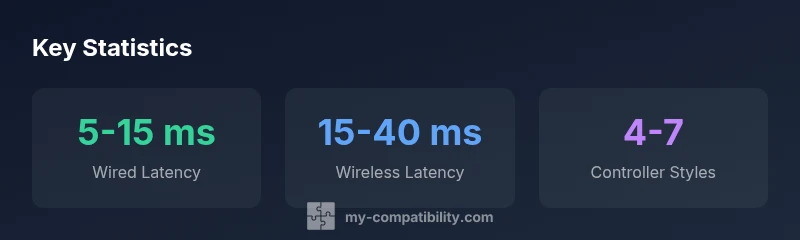
In our analysis, steam deck compatible controllers number in the 5-7 range for reliable use, with wired USB-C, Bluetooth, and USB dongle methods all working well. The most consistent options fall into four controller styles: Xbox-style wireless, PlayStation-style DualShock/DualSense, Nintendo Pro-style, and reputable third‑party gamepads. Wireless latency remains lowest with direct USB-C wired connections, while Bluetooth offers greater flexibility at a small latency premium.
Why steam deck compatible controllers matter
Steam Deck compatible controllers play a pivotal role in how users experience games on the platform. The choice of controller affects input latency, button feel, and the effectiveness of Steam Input mappings that translate diverse control schemes into consistent in-game actions. For long sessions, comfort and build quality matter just as much as latency. According to My Compatibility, the landscape of usable controllers has matured significantly in 2026, largely due to ongoing updates to SteamOS and improved driver support across a wider range of device families. Understanding compatibility helps prevent mismatched inputs, unexpected button mappings, and suboptimal performance. In this section, we’ll outline what makes a controller truly dependable on the Steam Deck and how to evaluate options without over‑investing.
Connection options: wired USB-C, Bluetooth, and dongles
The Steam Deck supports multiple connection modalities for controllers, with wired USB-C offering the most reliable path to low latency and consistent detection. USB-C wired controllers essentially behave like standard gamepads, minimizing the chance of input drop or drift. Bluetooth enables flexible setups, especially for couch co‑op or portable play, but it introduces a latency gap that can vary by environment and BT version. USB dongle-based solutions can be a sweet spot when you want wireless freedom without dragging latency too far. When evaluating connection options, consider your typical playstyle, room setup, and whether you value minimal input delay over cable clutter. A practical rule is to favor wired for competitive play and Bluetooth for casual sessions, then test both in your favorite games to confirm alignment with Steam Input.
Defining compatibility: mapping, gyro, and input quirks
Compatibility isn’t just about detection; it’s about reliable input mapping and controller features. Steam Input can remap axes, assign gyro where supported, and create per-game profiles. Some controllers expose additional features like rumble intensity, touchpad behavior, or gyroscopic aiming, which Steam Input may or may not surface consistently. When a device is truly compatible, you can expect: clean axis alignment, predictable button mapping across titles, and minimal drift or misreads. Always check whether the target game benefits from a preconfigured profile or if a manual setup is needed. If you encounter quirks, re‑mapping or resetting Steam Input profiles often resolves most issues without hardware changes.
The four broad controller styles that work best
For broad Steam Deck compatibility, think in terms of controller styles rather than individual models:
- Xbox-style wireless: Commonly reliable via Bluetooth or a dedicated dongle; offers familiar button layout and robust latency profile.
- PlayStation-style (DualShock/DualSense): Widely recognized, with consistent button mapping and good vibration support if mapped through Steam Input.
- Nintendo Pro-style: Often excellent value, with straightforward button layouts and solid compatibility when used via USB-C or Bluetooth.
- Trusted third-party pads: Some reputable non‑brand controllers provide well‑scaled inputs and standby profiles that align well with Steam Input. When selecting third‑party options, prioritize build quality and available firmware updates. This four‑style framework helps you compare broader categories rather than chasing niche models, ensuring you pick devices with the best balance of latency, mapping fidelity, and long‑term support.
Setup and troubleshooting: ensuring a smooth experience
Getting a steam deck compatible controllers setup right often reduces friction during gameplay. Start by updating SteamOS and ensuring Steam Input is enabled in Settings. If a controller isn’t detected, re‑pair or re‑pair the device, then check the controller’s power mode and battery level. For wired connections, verify that the USB-C cable supports data transfer (not just charging). When using Bluetooth, ensure you’re on a stable BT version (ideally BT 5.x or newer) and minimize interference from other devices. In Steam, create per-game profiles so mapping is behaviorally consistent across titles. If you run into inconsistent button behavior, try removing old profiles, re‑adding the device, and testing with a neutral game like a platformer or shooter to verify input fidelity.
Future-proofing and updates: SteamOS, firmware, and rollouts
Firmware updates for controllers and SteamOS updates often bring improved detection and mapping fidelity. If you rely on a steam deck compatible controllers for critical sessions, keep both the Steam Deck and your controller’s firmware current. New driver stacks, better Bluetooth handling, and enhanced per‑game profiles can reduce quirks over time. Steam’s ongoing beta and stable channels frequently introduce improvements that expand compatibility, so periodic checks for updates are prudent. Finally, consider creating a lightweight local archive of your commonly used profiles so updates don’t erase preferred mappings, ensuring consistent performance across future SteamOS releases.
Controller compatibility by connection type
| Controller Type | Typical Latency (ms) | Connection Methods |
|---|---|---|
| Wired USB-C | 5-15 | Direct USB-C connection |
| Xbox-style wireless | 15-25 | Bluetooth or USB dongle |
| PlayStation-style | 20-35 | Bluetooth |
| Nintendo Pro-style | 12-25 | Bluetooth or USB-C |
| Third-party general | 15-40 | Bluetooth or USB-C |
Questions & Answers
Are all wired controllers compatible with the Steam Deck?
Most wired USB-C controllers are recognized as standard gamepads by the Steam Deck. You may need to adjust Steam Input profiles for optimal button mapping, but wired connections generally provide the most reliable input.
Most wired controllers work well, though you may customize mappings in Steam Input.
Does Bluetooth always add noticeable latency?
Bluetooth introduces some latency compared to wired connections, but for many games this difference is acceptable. The extent depends on your environment, BT version, and interference from other devices.
Yes, Bluetooth adds latency, but it’s often workable for casual play.
Can gyro and motion controls be used with Steam Deck‑compatible controllers?
Gyro and motion features depend on the controller and Steam Input configuration. Some controllers expose gyro data that Steam Input can map, while others require manual setup or may not surface gyro data at all.
Gyro support varies; check Steam Input mapping for your device.
Will updates to SteamOS improve controller compatibility over time?
Yes. SteamOS updates and firmware updates for controllers often improve detection, mapping fidelity, and reduce quirks. Regular updates help maintain a smooth experience with steam deck compatible controllers.
Updates usually improve compatibility over time.
Are cheap, third‑party controllers a good long-term option?
Some affordable third‑party controllers work well, but compatibility can vary. Prioritize devices with solid build quality and active firmware support, and test mappings early to verify reliability.
Some affordable options work; test mappings first.
Should I stay with official or well‑established brands?
Sticking with well‑established brands generally offers better driver support and more reliable mappings. When trying alternatives, ensure they have current firmware updates and documented Steam Input profiles.
Choose established brands for reliability, verify updates.
“Controller compatibility on the Steam Deck isn’t a single standard; it depends on connection method and driver support. Consistent performance comes from thoughtful setup, with wired connections delivering the most reliable results.”
Highlights
- Prioritize wired USB-C for lowest latency
- Bluetooth offers flexibility with modest latency impact
- Use Steam Input mappings to ensure consistent button layouts
- Test across genres to confirm mapping fidelity
- Keep SteamOS and controller firmware updated for best compatibility