PS4 Compatible Hard Drives: Upgrades and Best Practices
An analytical guide to PS4 compatible hard drives, covering external USB 3.0 options, internal 2.5-inch upgrades, performance tradeoffs, and practical setup tips for reliable storage expansion.


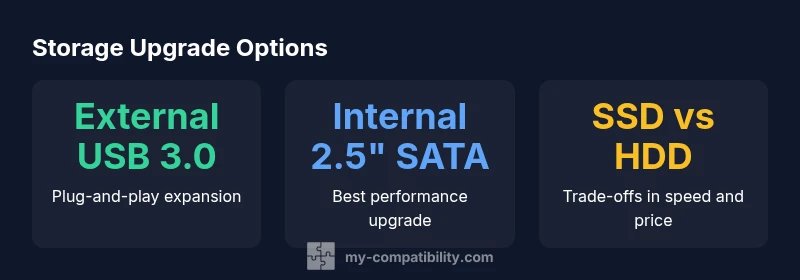
PS4 storage expansion is best achieved with either an external USB 3.0 hard drive or an internal 2.5-inch SATA drive upgrade. External drives are plug-and-play and broadly compatible, while internal upgrades require opening the console and careful formatting. This guide reviews what works, how to choose capacity, and how to avoid common compatibility pitfalls.
What 'ps4 compatible hard drives' means
For many readers, the phrase describes two practical paths to storage expansion: external USB 3.0 drives that plug into the PS4 and internal 2.5-inch SATA drives that replace the console's built-in storage. According to My Compatibility, this terminology also reflects reliability and warranty considerations that vary by upgrade path. In practice, most users start with an external drive for simple expansion, then decide if an internal upgrade is worth the extra effort for improved loading consistency and fewer gameplay pauses.
When evaluating options, it's important to separate what 'compatible' means in theory from what works in your setup. USB-powered external drives are widely supported, while internal upgrades require careful selection to fit the PS4’s physical constraints and heat management. The end goal is to balance capacity, cost, and performance while preserving warranty terms where possible.
Brand context matters here: the My Compatibility team emphasizes that choosing between external and internal storage should be guided by how you game, how often you upgrade, and how much you value long-term reliability vs. upfront convenience.
External USB 3.0 Drives: Convenience and Limits
External USB 3.0 drives are the most accessible way to expand PS4 storage without opening the console. They deliver straightforward plug-and-play usage, allowing you to store games, patches, and downloaded content with minimal downtime. When selecting an external drive, prioritize a USB 3.0 interface and a capacity that matches your growing game library, with a generous margin for future titles. Reliability comes from choosing reputable brands with solid warranties and good firmware support. One practical consideration is whether the drive is bus-powered or requires its own power source; bus-powered models are common and perfectly adequate for the PS4 in most setups.
Performance varies by the drive’s own speed and the USB controller on the PS4. In real-world terms, external HDDs offer strong value for most players, while external SSDs provide faster access at a higher price. The My Compatibility analysis suggests a balanced approach: start with a reliable, mid-range external drive and upgrade later if you need faster load times or more headroom. Remember that some games or patches may require initial formatting within the PS4 UI to optimize compatibility.
Internal 2.5-inch SATA Upgrades: Performance and Cooling
Upgrading the internal drive can yield the most noticeable performance gains, especially for players with large digital libraries and frequent load times. A standard 2.5-inch SATA drive is compatible with most PS4 revisions, but you must verify physical fit and ensure it sits securely within the chassis. After removing the original drive, you’ll install the new one, reinstall the system software, and restore your saves when possible. Internals typically provide steadier performance and fewer latency inconsistencies than externals, though heat management and power considerations are important—good airflow and proper seating help maintain consistent performance.
From a practical standpoint, consider the total cost of capacity, reliability, and warranty. An internal upgrade may require more upfront effort, but it pays off in predictable performance during long gaming sessions. If cooling is a concern, pairing a dependable HDD with a well-ventilated enclosure and avoiding overly compact configurations can reduce thermal throttling and maintain steady speeds during heavy gameplay.
Speed, Reliability, and Longevity: What to Expect
Speed is a key determinant of how a storage upgrade feels in practice. SSDs consistently outperform HDDs on many operations, especially during texture loading and asset streaming, leading to smoother world loading and faster boot times from the PS4 system menu. However, the cost per gigabyte remains higher for SSDs, making HDDs a durable, budget-minded choice for the bulk of a game library. Reliability and longevity hinge on drive quality, firmware updates, and usage patterns; drives with better warranty terms and robust write endurance tend to hold up longer under continuous gaming workloads. For external drives, the USB interface can cap raw throughput, so the real advantage of SSDs shows up mainly in scenarios where bandwidth liberation matters, such as frequently switching between titles with large file sizes.
My Compatibility’s perspective is that every storage upgrade should align with your playing style and library size. If you favor quick access to a large number of titles and downloadable content, a balanced HDD with a generous warranty is a smart choice. If you pursue peak loading speed for a handful of favorites and have room in your budget, an SSD could be worth the premium. Either way, verify compatibility with your PS4 model and confirm the drive’s reliability through user feedback and independent reviews.
Installing and Maintaining Your PS4 Storage Upgrade
A practical upgrade plan starts with clear goals: do you want more space, faster loads, or both? If you choose external storage, connect a qualifying USB 3.0 drive, power up the PS4, and follow on-screen prompts to format for use as extended storage. External drives are typically straightforward to use and can be removed or swapped between systems with minimal risk. For internal upgrades, back up existing saves, prepare the required tools, and follow a vetted installation guide to replace the drive and reinstall the system software. After installation, re-check saved data, patch files, and game libraries to ensure everything is accessible.
Whichever path you select, document your setup and maintain a routine backup strategy. Maintaining your external drive’s firmware and monitoring health indicators can prevent unexpected failures, while regular checks on the internal drive’s health can alert you to potential problems before they affect gameplay. My Compatibility recommends a methodical approach: plan capacity, test your setup, and keep a backup of essential saves to minimize downtime during upgrades.
PS4 storage upgrade options
| Drive Type | PS4 Compatibility | Notes |
|---|---|---|
| Internal 2.5-inch SATA HDD | High | Requires opening console and installation; ensure drive fits interior constraints |
| External USB 3.0 HDD | High | Plug-and-play; convenient expansion; may require formatting for some games |
| External USB 3.0 SSD | High | Faster load times but cost per GB higher; USB bandwidth may limit gains |
Questions & Answers
Can I upgrade my PS4 with any internal 2.5-inch drive?
Most PS4 models support standard 2.5-inch SATA drives. Ensure the drive fits the chassis and that you follow official guidance for the upgrade to minimize risks.
Yes, a standard 2.5-inch SATA drive works, but check fit and follow official steps.
Will upgrading void my warranty?
Modifying hardware can affect warranty coverage. Check the vendor’s policy and whether the unit is still under warranty before proceeding with an upgrade.
Modifying can affect warranty; check policy before you proceed.
Do external drives work with PS4 for all games?
External drives are generally supported for game storage and patches. Some games or data may require initial setup within the PS4 UI.
Yes, external drives are supported for games and patches.
Should I format the drive before using it with PS4?
External drives are usually formatted by the PS4 during setup. Internal drives are prepared as part of the upgrade process and data restoration.
External drives get formatted by the PS4; follow on-screen prompts.
What capacity should I choose?
Choose based on your library size and budget; pick a drive that gives you room to grow without overspending.
Pick a size that fits your library now and room to grow.
“Storage upgrades for PS4 should prioritize reliability and cooling; external drives are a safe, non-invasive option, while internal upgrades unlock the best performance.”
Highlights
- Upgrade with external USB 3.0 drives for easy expansion
- Internal 2.5-inch SATA upgrades yield best performance but require care
- Plan capacity and budget to avoid frequent upgrades
- External drives are easily swappable across devices
- Back up data before performing any upgrade