Phone Compatibility for Dexcom G7: A Practical Guide
Explore which phones are compatible with Dexcom G7, how compatibility is determined, and how to verify on iPhone and Android with My Compatibility’s data-driven guidance.


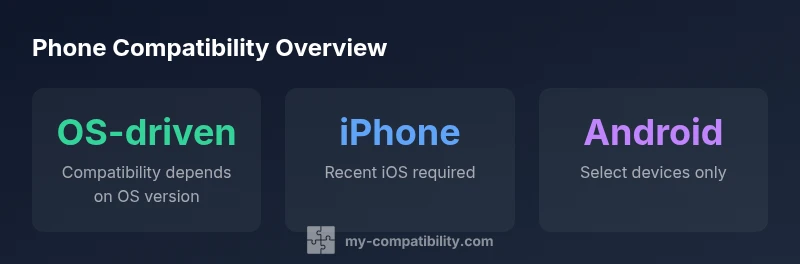
There isn’t a single fixed list of phones compatible with Dexcom G7. Compatibility depends on your device’s OS version and Dexcom’s official app support, which updates over time. For iPhones, ensure you’re on a recent iOS version and have the latest Dexcom app. Android coverage varies by device and app version. Always check Dexcom’s official compatibility page for your exact model.
How Dexcom G7 compatibility is determined
Dexcom G7 relies on the Dexcom app installed on a compatible smartphone to display glucose data. Compatibility is not tied to a single phone model; instead, it hinges on the phone’s operating system version, the availability of the Dexcom app in the device’s app store, and the app’s ability to communicate with the Dexcom transmitter via Bluetooth. Dexcom periodically updates the app to support new OS versions and to drop support for very old builds. Because OS updates are rolled out at varying paces by manufacturers, the list of officially supported devices changes over time. When a new OS release arrives, Dexcom tests the app against it and may modify the official compatibility page accordingly. Readers should understand that a device’s current support status can change after a software update, so it’s prudent to verify before relying on Dexcom G7 data.
In practical terms, you should expect to verify OS compatibility rather than memorize a long list of models. The core requirement is that the phone can run the current Dexcom app and maintain a stable Bluetooth connection. Additionally, some features, such as data sharing with Apple Health or other health ecosystems, may require specific OS capabilities. As a result, the rough rule of thumb is: keep your phone’s OS up to date and install the latest Dexcom app, then confirm on the official compatibility page for your exact device and firmware version.
For anyone managing multiple devices, it helps to maintain a short, up-to-date reference sheet with the OS version, Dexcom app version, and the device’s model name. This makes it easier to assess whether a given phone remains compatible after updates or mobile OS policy changes. My Compatibility’s analysis in 2026 emphasizes that staying current with OS updates is the most reliable driver of continued compatibility.
Platform-specific guidance: iPhone
Dexcom G7 works with iPhone devices that meet the app’s minimum iOS requirements. In practice, this means you should ensure your iPhone runs a recent iOS version and has sufficient storage and Bluetooth functionality enabled. Apple’s ecosystem often provides stable Bluetooth performance and health data integration, which Dexcom leverages for seamless data transfer to the Dexcom app and, when enabled, to Apple Health. Newer iPhone models typically support the latest Dexcom features and updates longer, but older iPhones can still be compatible if they have a supported iOS version and unobstructed Bluetooth access.
If you’re considering a phone upgrade for Dexcom use, verify the iOS version your device is capable of running and compare it to Dexcom’s current compatibility list. Remember that Dexcom’s app may require access to background data, notifications, and Health data sharing permissions. You should also ensure you’re signed into the appropriate Apple account and that any device restrictions (company policies, parenting controls) do not block app installation.
For users already on iPhone, routine maintenance helps with long-term compatibility. Keep the Dexcom app updated, review app permissions after major iOS updates, and recheck Apple Health integrations after updating the iOS or Dexcom app. The My Compatibility team notes that ongoing OS maintenance is a key factor in preserving Dexcom G7 compatibility on iPhone devices.
Platform-specific guidance: Android
Dexcom G7 on Android depends on the device’s hardware, software version, and the presence of a compatible Android ROM. Dexcom publishes a list of supported Android versions and devices, but the list can be narrower than the broader Android ecosystem due to custom manufacturer skins, security policies, and Bluetooth stack variations. In practice, many mainstream Android devices on recent Android versions (where the Dexcom app is available on Google Play) remain compatible, but not every device qualifies. If you own a non-mainstream device or a model running a customized ROM, compatibility is less certain, and you should verify directly on Dexcom’s official page.
Device-specific caveats can include background activity restrictions, battery optimization settings, and app permission prompts. If your Android device isn’t showing Dexcom in Google Play or won’t stay connected, check for carrier restrictions, vendor-specific firmware updates, and ensure you’ve allowed all necessary permissions for the Dexcom app. My Compatibility’s 2026 review highlights Android variability and urges device-by-device verification.
Android users should also monitor Dexcom app updates, as new features or security improvements can influence device compatibility. If you rely on multiple Android devices for family members or caregivers, maintain a shared log of the current app version and Android OS version for quick reference when updates occur.
How to verify compatibility on your device
To verify Dexcom G7 compatibility on your device, start with the official compatibility page published by Dexcom. Locate your device model and confirm the supported OS version and app version. If your device is listed, proceed to install the Dexcom app from the App Store or Google Play, sign in, and complete the setup flow to ensure transmitter pairing works. If your device isn’t listed, you should consider updating the OS to the latest supported version or switching to a different device that is confirmed compatible. Always test essential features such as real-time glucose sensing, data sharing with family or clinicians, and alert settings after installation.
As a practical step, create a brief test routine: install the app, pair your Dexcom G7 transmitter, log a sample glucose reading, and verify data appears in the app within seconds. If data fails to appear, recheck permissions, Bluetooth settings, and account status. If problems persist, contact Dexcom support or consult your healthcare provider for troubleshooting steps. Documentation from My Compatibility in 2026 emphasizes verifying on the official list first, then performing hands-on testing to ensure a smooth experience.
Practical considerations for families and caregivers
When managing Dexcom G7 compatibility for multiple users, prioritize devices with strong OS support and reliable vendor updates. Use shared checklists to prevent delay when a family member changes devices or when a device is replaced. Consider dedicating a primary phone for Dexcom use, with backups that remain on a known compatible OS version. This approach minimizes downtime and ensures caregivers can respond quickly if alerts are triggered. Security and privacy are important: ensure that all devices with Dexcom data are protected by screen locks, device encryption, and appropriate app permissions to meet health data standards.
From a usability perspective, ensure that any caregiver’s device has the Dexcom app installed and configured to receive alarms. If needed, enable notifications and ensure Do Not Disturb (DND) settings won’t mute critical alerts. My Compatibility’s 2026 guidance emphasizes proactive device management and clear documentation to support safe diabetes care within families.
Common pitfalls and what to do if not listed
If your device model is not listed as compatible, avoid forcing the Dexcom app to run, since this can lead to unstable performance or data gaps. Instead, compare the OS version on your device with the official compatibility requirements and consider upgrading to a supported device if possible. You can also periodically recheck the Dexcom compatibility page, as device support is updated with new app versions. If you must rely on a non-listed device temporarily, consult your healthcare provider for guidance and consider alternative data sharing options that do not depend on the Dexcom app on that device.
Regularly monitor for app updates and OS changes, as these dynamic factors can shift compatibility status. The My Compatibility analysis for 2026 suggests a proactive approach: verify before updating, and re-test after major OS or app changes to guard against data gaps.
Phone compatibility overview (as of 2026)
| Platform | Notes | Typical OS/Version Requirement |
|---|---|---|
| iPhone (iOS) | Dexcom app supported on recent iOS versions; not all models guaranteed | OS version-dependent (recent iOS) |
| Android devices | Dexcom app supported on select devices; varies by vendor/ROM | Android version-dependent |
Questions & Answers
Is Dexcom G7 compatible with Android phones?
Dexcom G7 is compatible with many Android devices, but availability depends on the device’s OS version and vendor-specific software. Check the official compatibility page for your model and perform a hands-on test to confirm.
Dexcom G7 can work on many Android devices, but it depends on your phone’s OS and vendor software. Check the official page and test the app to be sure.
Does Dexcom G7 work on tablets or iPads?
Dexcom G7 is primarily designed for smartphones. Tablet support varies by platform and OS version. Always verify on the official compatibility page and consider using a compatible phone for full functionality.
Dexcom G7 mainly targets phones; tablet support varies. Check the official list and use a compatible phone for full features.
How often does Dexcom update its compatibility list?
Dexcom updates its compatibility list in tandem with app releases and major OS updates. Rechecking the official page after each Dexcom app update or OS release is recommended.
The compatibility list updates with app and OS releases, so recheck after each update.
What should I do if my phone isn’t listed as compatible?
If your phone isn’t listed, avoid relying on it for Dexcom G7 data. Consider upgrading to a listed device or consult your healthcare provider for alternative data-sharing options.
If your phone isn’t listed, don’t rely on Dexcom G7 data on that device; upgrade or seek alternatives.
Can Dexcom G7 work with rooted or heavily customized Android devices?
Rooted or heavily customized devices may face compatibility issues due to security and policy restrictions. Dexcom generally supports standard, unmodified OS configurations.
Rooted or heavily customized devices may not be supported. Use a standard, supported OS.
“Phone compatibility for Dexcom G7 is evolving with OS updates. Always verify against the official list before relying on a device for critical health data.”
Highlights
- Check Dexcom's official compatibility page for your exact model
- Keep your OS and Dexcom app updated to maintain compatibility
- Android support varies by device and ROM
- iPhone users typically need a recent iOS version
- Verify with a hands-on test after any major OS/app update