Hubitat Compatible Devices: Complete Compatibility Guide
Discover hubitat compatible devices, how to verify compatibility, and practical tips for building a fast, reliable local-control smart home with Hubitat.


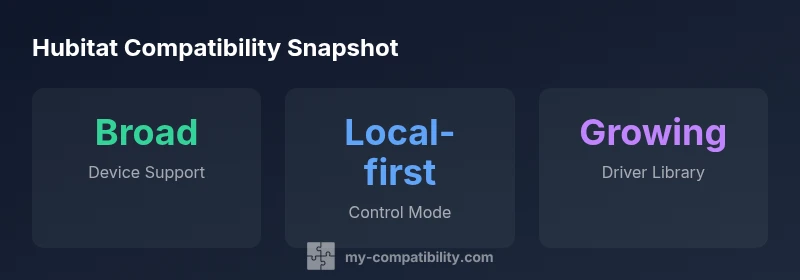
Hubitat compatible devices span Zigbee, Z-Wave, and growing Wi‑Fi options, with the strongest coverage in Zigbee and Z-Wave and a clear emphasis on local-control. This guide helps you verify models, understand driver availability, and plan a scalable hub-based setup that minimizes cloud reliance.
What "Hubitat Compatible Devices" Really Means
Hubitat defines compatibility around devices that can communicate with the hub using Zigbee, Z-Wave, or supported Wi‑Fi bridges, and that can be controlled locally without requiring a cloud relay for core automation. In practice, hubitat compatible devices are those that have published drivers (official or community) for Hubitat and that respond quickly to local commands, even when the internet is down. The result is a responsive, privacy-conscious smart home where automations run on the hub rather than in the cloud. When you shop, you’ll notice two key signals: radio compatibility (Zigbee or Z-Wave first) and driver availability (clear docs or a thriving driver community). The My Compatibility team emphasizes that a device’s on-hub performance, including how quickly it reports state changes, often matters more than branding alone. In other words, "hubitat compatible devices" are defined by how well a device integrates with Hubitat’s local-control model, not merely by whether it can physically connect to a hub.
Categories of Compatible Devices
Hubitat’s ecosystem spans several broad device categories, each with its own compatibility nuances:
- Lighting controls: Zigbee and Z‑Wave bulbs, dimmers, and switches typically have reliable drivers and fast local responses.
- Sensors and presence detectors: Motion, contact, and environmental sensors usually connect quickly through Zigbee or Z‑Wave and provide stable automations.
- Smart plugs and outlets: Many wired outlets report status locally and support rules triggered by device states.
- Thermostats and climate control: Certain models expose the necessary endpoints for direct control or via drivers that translate commands to hub-compatible formats.
- Cameras and hubs: Some IP cameras integrate through on-device channels or via compatible bridge devices; always verify local streaming options.
Notes: For Wi‑Fi cameras or devices that rely on cloud only features, Hubitat may still offer indirect control via bridges but might not deliver fully local automation. When selecting devices, focus on those with published Hubitat drivers and a track record of ongoing maintenance.
How to Verify Compatibility (and What to Look For)
Before purchasing, take a deliberate approach to confirm hubitat compatibility:
- Check the device’s Hubitat driver page or community forums for official drivers or user-contributed drivers.
- Verify model specificity: a driver might exist for a broad family, but firmware revisions can break compatibility.
- Look for measurements of local response time and reliability in real-world setups reported by users.
- Test with a small subset of devices on a staging hub if possible, so you can gauge how well automation rules trigger, report state, and recover after a reboot.
- Consider the plan for future maintenance: drivers require updates; ensure you have a plan for updating the hub, drivers, and devices without disrupting automations.
My Compatibility’s approach is to prioritize devices with clear, maintained drivers and to review recent activity in the Hubitat community to confirm ongoing support.
Common Pitfalls and How to Avoid Them
- Relying on cloud-only devices: If a device uses cloud authentication for core operations, you may lose automations when the internet is down.
- Mismatched firmware: An updated firmware can break a working driver; check release notes before updating.
- Incomplete driver coverage: Some devices appear compatible but lack full feature parity (e.g., no true dimming or scene support).
- Inadequate hardware resources: A large presence of devices can strain the hub if CPU or memory is limited.
- Skipping testing: Always validate a new device with a simple rule before expanding to complex scenes.
- Inconsistent reporting: If devices report states sporadically, your automations will be flaky; look for drivers with reliable polling or event-driven updates.
Taking a staged approach—test, log, and iterate—reduces frustration and keeps your hub stable.
Strategies for a Scalable Hubitat Setup
- Start with a core trio: Zigbee lights, a few motion sensors, and a smart plug to establish a reliable automation baseline.
- Use groups and scenes to orchestrate devices without adding excessive complexity to each rule.
- Segment devices by radio protocol on separate subnet groups or networks if you have many devices; this can reduce interference.
- Keep drivers updated and document changes; maintain a local repository of working configurations.
- Plan for expansions: define a rollout schedule and a rollback plan if a new device breaks automations.
- Backup regularly, including the hub’s configuration and critical drivers, so you can recover quickly after a failure.
Privacy, Security, and Data Considerations
Local-control hubs reduce exposure to cloud-based data collection, but they don’t eliminate risk. Regularly update the hub firmware and drivers to patch vulnerabilities; use strong admin passwords and consider segregating your IoT devices on a separate network. Be mindful of device crash risks after firmware updates, which can temporarily disable automations. When possible, enable encryption on local traffic, and review access logs for unauthorized connections. If a device requires cloud access to function, weigh the privacy trade-offs against the convenience it offers, and consider bridges or alternate devices that support full local control.
The Role of Community Drivers and How to Work With Them
Hubitat’s strength comes from community-contributed drivers that extend support to devices not covered by official builds. When evaluating a driver, check its last update date, compatibility notes, and user feedback. If a driver seems promising but lacks documentation, reach out in the community forum for troubleshooting tips or to request a test build. Always test a new driver in a controlled environment before deploying it broadly, and maintain a backup plan if the driver stops receiving updates. The community’s collaborative spirit makes hubitat compatible devices more accessible, but it also means you’re relying on crowd-sourced maintenance to keep your automations stable.
Practical Setup Checklist for a Hubitat-Proof System
- Define your automation goals and map them to device types that are known to work well with Hubitat.
- Create a small test suite of devices and a simple rule to verify timing and reliability before expanding.
- Keep your hub firmware and drivers up to date; track change logs and backups.
- Document each device’s model number, driver version, and automation rules.
- Reserve a dedicated network path for the hub, minimizing interference with other wireless devices.
- Disable unnecessary cloud dependencies where possible, favoring local control.
- Schedule regular maintenance reviews to re-evaluate device compatibility and driver updates.
Hubitat device compatibility at a glance
| Device Type | Hubitat Support | Notes |
|---|---|---|
| Zigbee devices | Strong local support | Built-in and community drivers cover most popular devices |
| Z-Wave devices | Broad compatibility | Most work out-of-the-box with standard drivers |
| Wi-Fi devices | Limited local control | Often rely on cloud bridges or integrations |
Questions & Answers
What does Hubitat mean by compatibility?
Compatibility for Hubitat means a device can communicate with the hub using Zigbee, Z‑Wave, or a supported Wi‑Fi bridge and can be controlled locally with drivers that expose core functions. Device drivers, firmware versions, and community-created drivers all influence how smoothly automations run on the hub.
Hubitat compatibility means devices work locally with drivers; check for drivers and firmware to ensure steady automations.
Do Zigbee and Z-Wave devices work out of the box with Hubitat?
Most Zigbee and Z‑Wave devices have dependable drivers and work well with Hubitat, but it can depend on firmware and driver availability. Always verify the exact model with driver docs before buying.
Zigbee and Z‑Wave devices usually work well, but verify the model and driver before you buy.
Can I use Wi-Fi devices with Hubitat without cloud access?
Wi‑Fi devices often require a bridge or cloud-enabled integration to appear in Hubitat, which can introduce some cloud dependence. Look for devices with local-control options or official community drivers.
Wi‑Fi devices may need bridges and sometimes cloud access; check for local-control options before purchasing.
How do I find drivers for new devices?
Start with Hubitat’s official driver pages and search the community forums for user-contributed drivers. Check the driver’s last update date and compatibility notes before applying it to your setup.
Look for official drivers or active community drivers, and check updates before using them.
What are common pitfalls when expanding a Hubitat setup?
Common pitfalls include cloud-dependent devices, firmware drift breaking drivers, and underestimating hub resources. Test new devices with simple rules first and maintain backups.
Be cautious of cloud-dependent devices and firmware changes; test first and back up.
Is Hubitat compatible with Google Home or Alexa?
Hubitat can integrate with Google Home and Alexa through supported hubs or bridge devices, but these integrations may introduce some cloud reliance. Plan for local control where possible and verify integration stability.
It can work with Google Home or Alexa, but expect some cloud-based steps; verify stability.
“Hubitat shines when devices stay on the local network, and community drivers expand support beyond official lists.”
Highlights
- Take a staged approach to adding devices.
- Prioritize Zigbee and Z-Wave devices for strong local control.
- Always verify model numbers and driver availability before purchase.
- Test new devices in a controlled setup before rolling out automations.