HDMI Mode Standard vs Compatibility: A Practical Guide
In-depth comparison of HDMI mode standard vs compatibility, with guidance on when to use each approach, how they affect performance, and practical troubleshooting tips for mixed-device setups.


HDMI mode standard vs compatibility describes two approaches to how devices negotiate capabilities: one prioritizes strict adherence to the HDMI specification for peak performance, while the other emphasizes cross‑generation interoperability to ensure older displays and devices work smoothly. In most modern, all‑HDMI ecosystems, standard mode delivers the best results, but compatibility mode can prevent surprises in mixed setups. This guide breaks down when each approach is appropriate and how to optimize your connections.
HDMI mode standard vs compatibility: definitions and context
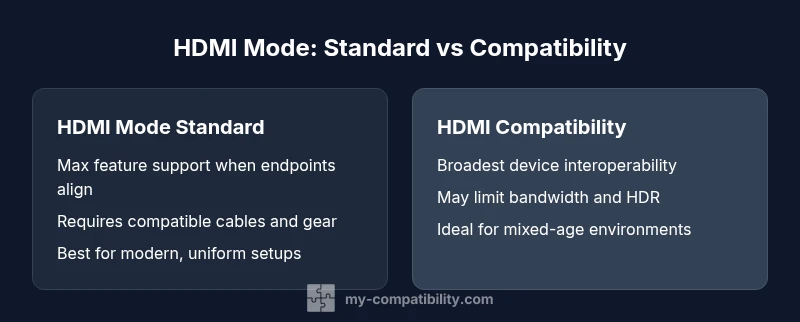
When people talk about hdmi mode standard vs compatibility, they are really comparing two approaches to how HDMI devices negotiate capabilities like bandwidth, color depth, and audio formats. The core idea is simple: standard mode aims to maximize feature support when every component in the chain is speaking the same language. Compatibility mode, by contrast, prioritizes working across a wider range of devices, including older gear that may not implement the latest features perfectly. According to My Compatibility, the decision is influenced by your device ecosystem, cable quality, and content type. If you are building a new home theater with up-to-date TVs, consoles, and receivers, standard mode is typically the right choice. In mixed environments, compatibility mode can reduce stubborn handshake issues and display dropouts. hdmi mode standard vs compatibility is a practical lens for evaluating upgrades, cables, and setups across rooms or devices.
How HDMI negotiation works in practice
Every HDMI link begins with a handshake: EDID information is read from the display, the source negotiates a set of capabilities, and features are selected to match what both sides can support. This negotiation happens behind the scenes and is influenced by the mode you choose. In standard mode, devices push for the highest common feature set, which can unlock HDR, high refresh rates, and multi-channel audio when all hardware supports them. In compatibility mode, devices may settle for a safe subset of capabilities to guarantee that every component in the chain–including legacy displays or adapters–remains functional. Understanding this negotiation helps you diagnose why a high-end feature pair might not activate on an older HDMI chain.
What 'HDMI mode standard' means in practice
Standard mode assumes that endpoints (source, display, and any intermediate devices) understand and support the latest HDMI features you intend to use. This implies strict compliance with HDMI version capabilities, precise color spaces, deep color, high bandwidth modes, and robust HDCP handling. In practice, enabling standard mode on a fully modern chain can yield the smoothest performance: higher resolutions, better color fidelity, and richer audio formats. The trade-off is sensitivity to any non-conforming component. A single aging cable or an older HDMI port can force a fallback to a compatibility-like negotiation, eroding the benefits of standard mode.
What 'HDMI compatibility' means in practice
Compatibility mode prioritizes working broadly over pushing every feature to the limit. It reduces the risk of handshake failures with older GPUs, TV models, or adapters that don’t fully implement new specs. This mode may limit color depth, drop HDR when necessary, or cap bandwidth to ensure a stable picture. It is especially useful in environments with diverse devices: a new gaming PC paired with an older projector, or a set-top box connected through legacy receivers. In these cases, compatibility mode minimizes display blanking, blackouts, or flaky auto-detection.
Technical differences that matter for performance
Three technical arenas matter most: bandwidth, color depth, and HDR support. Standard mode typically negotiates the highest common bandwidth, enabling 4K at high refresh rates and wide color gamuts where available. Compatibility mode intentionally carves down capabilities to avoid feature mismatches, which can mean reduced HDR precision, color subsampling, or tighter audio formats. For audiences pursuing peak gaming or cinema experiences on a homogeneous setup, standard mode typically wins. For families with mixed devices, compatibility mode reduces the likelihood of unsightly handshakes and black screens.
Cable quality, lengths, and connectors impact
Cables and connectors are not neutral: high-bandwidth features require properly rated cables (e.g., high-speed or ultra-high-speed HDMI cables) and stable connector contacts. In standard mode, a marginal cable can become the bottleneck and prevent feature activation. In compatibility mode, the negotiation may automatically downgrade features to preserve a reliable link, even with a longer or cheaper cable. If you face intermittent blackouts or color artifacts, inspect cable integrity and consider upgrading to cables rated for your target bandwidth.
Real-world scenarios: a few use cases
- Modern living room with a 4K TV, current game console, and premium AVR: standard mode often yields the cleanest performance if every element supports HDMI 2.1 features. Ensure cables are high‑speed and ports are properly configured. If you see intermittent saturation or flicker, compatibility mode can stabilize the display while maintaining acceptable quality.
- Mixed environment with an older projector and a new streaming device: compatibility mode reduces the risk of handshake failures, even if you give up some high-end features. A practical approach is to test both modes and compare perceived color and motion handling.
- Multi-room setups with long HDMI runs: signal integrity matters more than feature depth; compatibility mode can prevent dropouts caused by cable length or poor signal integrity. Consider active cables or HDMI repeaters if you push bandwidth limits.
Troubleshooting: negotiating HDMI mode
If you experience dropouts or no signal, begin with a simple test: swap cables with known good ones, test with shorter runs, and verify EDID data from the TV or monitor. Then test both modes on the same content, watching for differences in HDR, color accuracy, or motion. Firmware updates for the source device, display, and any involved receivers can fix handshake quirks. If problems persist, isolate components one by one to identify the bottleneck, then choose the mode that produces stable output.
Best practices for hardware selection
Choose devices known to support stable HDMI negotiation under your preferred mode. For standard mode, verify that all endpoints claim HDMI version features relevant to your content (e.g., 4K60 HDR). For compatibility mode, ensure that older devices’ EDID data and firmware are up-to-date, and consider adapters with built-in compatibility logic. When possible, test before committing to a longer cable or multi-device chain. My Compatibility suggests aligning devices around a common, supported HDMI version to reduce runtime decisions.
Common misconceptions and pitfalls
A frequent misunderstanding is assuming newer hardware automatically guarantees flawless operation in all scenarios. In reality, the handshake depends on every link in the chain. Another pitfall is relying on “HDMI cables” as a universal fix; the wrong rating or a damaged connector can cause issues that look like compatibility problems. Finally, some users confuse ‘HDMI mode standard’ with ‘HDMI 2.1 always on’; there are many feature gates across versions that matter for your setup.
Cost, value, and future-proofing
Budgeting for HDMI upgrades benefits from thinking in terms of end-to-end compatibility rather than isolated components. Standard mode may demand higher-quality cables and newer devices to maximize feature support, which has a value in future-proofing. Compatibility mode often costs less in the short term, but it may cap HDR, color depth, and high-bandwidth features. Weigh your content needs, display capabilities, and room layout when choosing a path.
When to choose which approach: a practical checklist
- Do all devices support the latest HDMI features you plan to use?
- Are there any legacy devices or adapters in the chain?
- Is signal integrity likely to be an issue due to length or environment?
- Do you require HDR, high refresh rates, or object-based audio?
- Can you test both modes to observe practical differences in your real content?
If the answer is yes to all-modern compatibility, go standard. If mixed gear is unavoidable, start with compatibility and migrate as devices get refreshed.
Comparison
| Feature | HDMI Mode Standard | HDMI Compatibility |
|---|---|---|
| Definition | Defined behaviors negotiated by devices to maximize features | Prioritizes working across older devices, potentially limiting features |
| Feature negotiation | Automatic negotiation via EDID/HDMI handshake to enable high-end features | May degrade to a basic feature set for broad compatibility |
| Best For | Modern, all-new device ecosystems with up-to-date cables | Mixed-age environments with legacy displays or adapters |
| Performance impact | Potentially full bandwidth, HDR, and high color depth when supported | Likely reduced features to ensure reliable operation |
| Cable requirements | High-quality cables rated for the target bandwidth | Greater tolerance for varying cables, with acknowledged limitations |
| Troubleshooting | Check EDID, firmware, and try dedicated ports | Isolate cables and adapters; consider alternative paths |
| Future-proofing | Maximizes future feature support if chain is compliant | Emphasizes broad compatibility; may slow feature adoption |
Positives
- Maximizes feature set when all devices support it
- Enhances performance and visual fidelity with modern gear
- Reduces setup complexity in a homogeneous ecosystem
- Helps preserve HDR and deep color with supported endpoints
- Improves user experience in high-end gaming and cinema setups
Cons
- Requires all devices to support the latest specs
- Sensitive to cables, ports, and firmware mismatches
- Can cause handshaking issues with legacy hardware
- May be overkill for simple or mixed environments
HDMI Mode Standard generally delivers superior performance when every component is modern; HDMI Compatibility is the safer default in mixed environments.
Choose standard mode if all devices and cables are current and verified. If you have mixed-age devices, start with compatibility to minimize handshakes, then upgrade components as needed for full feature support.
Questions & Answers
What is HDMI mode standard?
HDMI mode standard refers to a setting where devices negotiate capabilities according to the latest HDMI specification, pushing for maximum feature support such as higher bandwidth, HDR, and enhanced audio. It works best when all components in the chain are current and fully compliant.
HDMI mode standard means all devices use the newest features available, but only if every part of the chain supports them. If something is outdated, you may lose some features or encounter handshakes.
What does HDMI compatibility mean in practice?
HDMI compatibility emphasizes interoperability across a mix of devices, including older hardware. It may intentionally reduce the feature set to ensure a stable connection, avoiding blank screens or dropouts.
Compatibility mode prioritizes working together across old and new gear, which can mean fewer features but fewer disruptions.
Can I use HDMI compatibility with HDMI 2.1 features?
In some cases, compatibility mode will not enable the full HDMI 2.1 feature set if an endpoint doesn’t support it. Users in mixed environments should expect some limitations in bandwidth, HDR, or advanced audio.
Compatibility mode may limit HDMI 2.1 features if any device in the chain doesn’t support them.
What are common signs of negotiation problems?
Common signs include black screens, color artifacts, sudden HDR changes, or intermittent no-signal events. Troubleshooting usually starts with cable checks, EDID verification, and firmware updates.
If you see flickering, color issues, or no signal, check cables and EDID, then try switching modes.
Should I always test both modes?
Testing both modes in your actual setup helps you observe differences in color, HDR behavior, and stability, guiding you to the most reliable configuration for your content and devices.
Yes—testing both modes in your environment shows which delivers the best balance of features and reliability.
How do I optimize HDMI performance without replacing hardware?
Focus on using certified high-bandwidth cables, ensuring firmware is up-to-date, and minimizing the number of signal doublers or adapters. These steps often improve stability without hardware upgrades.
Try certified cables and firmware updates; keep adapters to a minimum to boost stability.
Highlights
- Assess your entire HDMI chain before choosing a mode
- Standard mode requires modern endpoints and cables for peak performance
- Compatibility mode favors reliability in mixed-device setups
- Test both modes in your environment to quantify differences
- Invest in quality cables for high-bandwidth features when using standard mode