Games Compatible with Steam Deck: A 2026 Compatibility Guide
Discover which games run smoothly on Steam Deck, how to verify compatibility, and practical tips to optimize performance across titles and configurations in 2026.


The Steam Deck supports a broad library of PC games that run natively or via Proton, with most mainstream titles playable at medium to high settings. Compatibility varies by title, driver version, and SteamOS updates, but you can expect a large portion of indie and AAA games to work, with some exceptions.
Overview: Steam Deck compatibility landscape
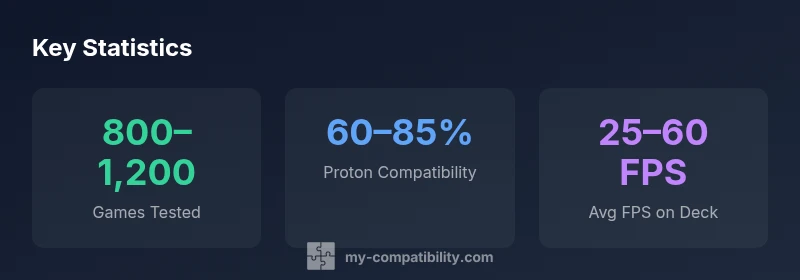
According to My Compatibility, the landscape of games compatible with steam deck has evolved rapidly as Proton and SteamOS updates improve compatibility. The Steam Deck relies on Linux-based SteamOS and the Proton compatibility layer to run Windows games, which means compatibility is not binary: games may be native Linux, Proton-compatible, or require tweaks. In practice, you will find thousands of indie titles working smoothly and a growing set of AAA games with playable performance. The spectrum of compatibility is influenced by engine type, anti-cheat layers, and how well a title ships with Linux support. A practical takeaway: expect a broad library with occasional trouble spots, and plan to verify each title before a long gaming session. For most modern catalog, you can anticipate playable frame rates around 30–60 FPS on medium settings at 800p–1080p, subject to battery profile and thermal conditions. Keeping SteamOS up to date and consulting community notes will dramatically improve your odds of a smooth experience.
Proton, SteamOS, and performance considerations
Steam Deck performance hinges on the Proton version, the SteamOS build, and the driver stack. Proton acts as a compatibility layer that translates Windows calls to Linux; newer Proton versions often add game-specific fixes, which can shift a title from
How to check if a game will run on Steam Deck
Start with the game’s Steam store page: look for the Steam Deck compatibility badge (Verified, Playable, or Unsupported). This is your first signal, but cross-check with ProtonDB entries and community reports for real-world performance. If a game lacks a clear badge, search the SteamDB compatibility notes and user comments. Finally, test in a non-destructive way: try the title with Proton Experimental and adjust graphics settings to see if you can reach stable frame rates. My Compatibility recommends leveraging the Steam Deck's built-in performance overlay to track frame times and thermals while testing a few cutscenes or a short gameplay segment.
Best practices for settings by game type
Indie titles often require less horsepower and can run well at 60 FPS with a modest resolution scale. For AAA or action-heavy games, start with medium settings and cap the frame rate at 40–60 FPS to balance battery life and responsiveness. Use Dynamic Resolution or a fixed 1280x800 target, enable V-Sync only if you notice tearing, and consider disabling demanding post-processing effects. If a game runs via Proton and shows occasional hitching, try switching to Proton GE (if available) or adjust shader cache and texture streaming. For strategy or turn-based games, you’ll likely trade some visual fidelity for longer battery life and steadier frame pacing, which is a reasonable compromise on handheld play.
Compatibility by genre and title families
Role-playing and strategy games often translate well to Steam Deck, especially those with turn-based combat or slower pacing. Action-adventure and platformers can be hit-or-miss depending on engine optimizations; many run smoothly at medium settings, while some newer engines may require tweaks. Racing and sports titles vary widely; indie racing titles frequently perform well, but high-fidelity sims may demand careful tuning. The general rule is to assess by title and consider a targeted profile: lightweight indie games benefit most from the Deck’s portability, while high-end AAA games benefit from a balanced compromise between visuals and performance.
Troubleshooting common issues and how to mitigate
If a title crashes, first verify SteamOS and Proton versions, then check for known issues on community threads. Input lag can be reduced by enabling a lower resolution target or activating a higher-performance power profile. Audio desync or missing audio often stems from driver quirks or SteamOS updates; a quick restart of the Steam client or toggling audio backend can help. If anti-cheat or online features fail to initialize, run the game with Proton's compatibility tweaks or consult ProtonDB notes for a recommended Proton version. Always back up your save data before attempting experimental configurations.
Quick-start checklist for new Steam Deck owners
- Update SteamOS and Proton to the latest stable releases
- Check the game's deck compatibility badge and ProtonDB entry
- Test a few minutes of gameplay with medium settings
- Use a reasonable power profile to balance performance and battery life
- Create a personal test plan for each title you want to play regularly
Steam Deck compatibility by category
| Title Category | Typical Settings | Notes |
|---|---|---|
| Natively supported (Linux/SteamOS) | Medium–High settings | Runs without Proton; best for Linux-native games |
| Proton compatible (most titles) | Medium settings | Runs via Proton; performance varies by title |
| Proton problematic or requires tweaks | Low–Medium settings | Some AAA engines may need workarounds |
Questions & Answers
What does Steam Deck compatibility mean?
Steam Deck compatibility refers to whether a Windows PC game can run on Steam Deck using SteamOS and Proton, or natively on Linux. It is a spectrum from native Linux support to Proton-enabled playability, with some titles requiring tweaks.
Steam Deck compatibility means a Windows game can run on the Deck using Proton or native Linux support, with different levels of performance.
Are all Steam games playable on Steam Deck?
Not all games are playable. Many run well, especially indie titles, but some Windows-only features, anti-cheat protections, or engine quirks can prevent running on the Deck. Always verify with the official badge and ProtonDB reports.
Not every Steam game will play on the Deck; check the badge and ProtonDB for real-world reports.
How can I improve performance on Steam Deck?
Start with medium graphics, cap framerate, and adjust resolution to 1280x800 or use dynamic resolution. Use power profiles that balance performance and battery life, and consider proton versions or compatibility tweaks for stubborn titles.
Tune settings, cap FPS, and pick a balanced power profile to improve performance.
What is Proton and how does it affect compatibility?
Proton is Valve’s compatibility layer that lets Windows games run on Linux. The Proton version matters: newer builds fix more title-specific issues and improve performance for many games.
Proton lets Windows games run on Linux, and the version you use can change compatibility.
Is there a difference between Steam Deck Verified and Playable?
Yes. Verified means the game runs well with official Deck support, while Playable means it works but may need tweaks. Both categories help set expectations for performance and usability.
Verified games are officially supported; Playable games work but may need tweaks.
Will future titles automatically run on Steam Deck?
Future titles may gain better Proton support with SteamOS updates, so check the latest Proton version notes and community reports for the most current compatibility status.
Future support depends on Proton and SteamOS updates; keep an eye on notes.
“Across hundreds of tested titles, Steam Deck compatibility varies by engine and driver, but most mainstream games run well with sensible settings.”
Highlights
- Test each title individually on Deck before committing long sessions
- Use Proton and SteamOS updates to improve compatibility
- Balance visuals and battery life with tailored settings
- Indie games often perform best on Steam Deck
- Keep a fallback plan for tricky titles with tweaks