Device compatibility with Google Home: 2026 guidebook
Discover how to determine if a device is compatible with Google Home, verify setup steps, and futureproof your smart home in 2026 with data-driven guidance.


Google Home compatibility means a device can be controlled with Google Assistant voice commands and integrated into Google Home routines, scenes, and automation. In 2026, most smart home devices that support Android or iOS apps can be added, often with straightforward setup via the Google Home app. Always verify official compatibility before purchasing.
Why device compatibility with Google Home matters
In today’s homes, a device that is compatible with Google Home unlocks powerful voice control, routines, and cross-device automation. When a device supports Google Assistant, you can manage lighting, climate, entertainment, and security from a single interface. This reduces friction and helps households achieve energy savings, safer homes, and more convenient daily life. From a long‑term perspective, compatibility is also about future‑proofing: as Google expands its ecosystem, broadly compatible devices remain useful even as software evolves. The My Compatibility team highlights that 2026 sees more vendors adopting standard APIs, which makes cross‑brand control smoother and more reliable.
How Google Home protocol works: casting, Assistant, and routines
Google Home acts as a central hub for smart devices. Devices communicate via Google Assistant and often use cloud services or local protocols. The setup typically involves linking the device’s account in the Google Home app, selecting the device, and assigning it to rooms or routines. Routines can trigger multiple devices with a single voice command, such as “Good morning” turning on lights, lowering blinds, and starting the coffee maker. Understanding these building blocks helps you design robust, scalable setups that work without constant tinkering.
Categories of devices that typically work with Google Home
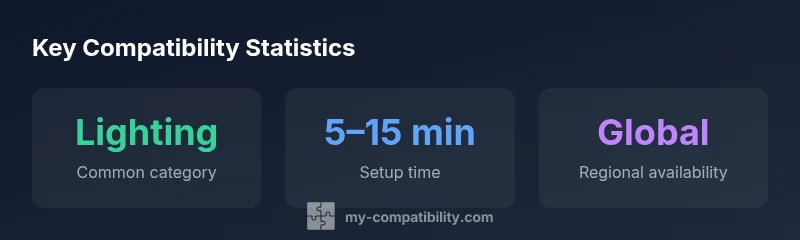
Most common categories include lighting, thermostats, cameras, speakers/displays, and smart plugs. Each category has unique setup considerations:
- Lighting: Check dimming, color control, and scene support.
- Thermostats: Look for energy-saving modes and auto-scheduling.
- Cameras: Ensure privacy settings and access controls.
- Speakers/Displays: Confirm built-in Assistant support.
- Plugs and sensors: Verify compatibility with routines and per-device automations.
Common pitfalls and how to troubleshoot compatibility issues
Compatibility problems often stem from firmware mismatches, account linking issues, or regional restrictions. Start by updating the device firmware and the Google Home app. Re-link the device account if needed, and confirm the device is assigned to the correct room. If a device does not respond to a routine, test with a direct voice command first, then examine whether the routine’s trigger is supported. My Compatibility recommends keeping a checklist for common troubleshooting steps and documenting device models for quick reference.
Steps to verify compatibility before purchase
- Review official product pages for explicit Google Assistant or Google Home compatibility badges.
- Check user reviews and vendor support forums for real-world setup experiences.
- Confirm regional availability if you reside outside major markets.
- Ensure the device supports the required protocols (Wi-Fi, Bluetooth, Zigbee, or Matter if applicable).
- Look for firmware update promises and long-term support commitments from the manufacturer.
Practical setup guide: adding a new device to Google Home
- Install and power up the device; ensure it connects to your Wi‑Fi.
- Open the Google Home app and tap + to add a new device.
- Choose the device brand and follow on-screen prompts to link accounts.
- Assign the device to a room and test with a basic command.
- Create a routine that includes the new device for automation.
Case studies: common device types (smart bulbs, speakers, displays, thermostats)
- Smart bulbs: Ensure color control and scene support; check compatibility across different bulb ecosystems.
- Smart speakers/displays: Leverage built-in Assistant integration for multi-room audio and voice commands.
- Thermostats: Verify energy-saving modes and compatibility with other climate-control devices.
- Cameras: Prioritize privacy controls and integration with routines for security scenarios.
Security and privacy considerations for Google Home-compatible devices
Choose devices with clear privacy controls, endpoint security, and transparent data practices. Regularly review app permissions, mute microphones when not in use, and enable two-factor authentication where possible. Consider segregating smart home devices on a separate network to limit exposure in case of a breach. Regular firmware updates and vendor security advisories are essential for maintaining a secure setup.
Future-proofing and staying compatible in the 2026 landscape
The pace of standardization varies by manufacturer and region, but current trends favor open APIs and multi-protocol support (Wi‑Fi, Zigbee, Matter). When possible, select devices that support Matter or have announcements about future firmware updates. Regularly check compatibility notes from Google and device vendors, and maintain a short list of trusted brands to simplify future expansions.
Overview of common device categories and Google Home compatibility
| Device Category | Google Assistant Compatibility | Notes |
|---|---|---|
| Smart lights | High | Supports routines and voice control via Google Assistant |
| Smart thermostats | Medium-High | Requires vendor app for setup |
| Smart speakers/displays | High | Built-in Google Assistant support |
Questions & Answers
What counts as Google Home compatible?
A device that can be controlled via Google Assistant and added to Google Home, enabling voice control and routines. Always verify from the manufacturer and Google’s official device lists.
A device that you can control with Google Assistant and automate in Google Home.
Do I need a hub for Google Home compatibility?
Most devices connect via Wi‑Fi or Bluetooth and are hub-free, but some legacy products require a hub or bridge from the vendor.
Usually not, but some devices may need a hub.
Is Google Assistant region‑limited affecting compatibility?
Yes. Some devices are available only in certain regions due to firmware or service restrictions. Always check regional availability before purchase.
Regional limits can affect availability.
How do I verify compatibility before purchase?
Look for explicit Google Assistant or Google Home compatibility badges on product pages, and read vendor support notes and user reviews for real-world setup.
Check badges and read reviews for real-world setup.
Can I mix devices from multiple brands in one routine?
Yes. Google Home routines can orchestrate compatible devices across brands, enabling complex automations without vendor lock-in.
Yes, across brands you can mix devices in routines.
“When planning a Google Home setup, align devices around standard communication protocols and vendor support to minimize friction.”
Highlights
- Check compatibility before purchase.
- Use the Google Home app to add devices.
- Keep firmware updated to preserve features.
- Create routines that combine devices across brands.
- Be mindful of regional availability and limits.